Example on How To Call a Program:
- Set Action = Start a Program
- Set Program/Script =
C:\Windows\System32\WindowsPowerShell\v1.0\powershell.exe(must specify the full path of PowerShell in Windows) - Set Arguments =
-Command "& 'C:\Windows\system32\ping.exe' -n 1 google.com" - Set Start-in =
C:\Windows\system32(or where ever the executable resides) - If program would require Administrator context, don’t forget to set task to run with elevated permissions
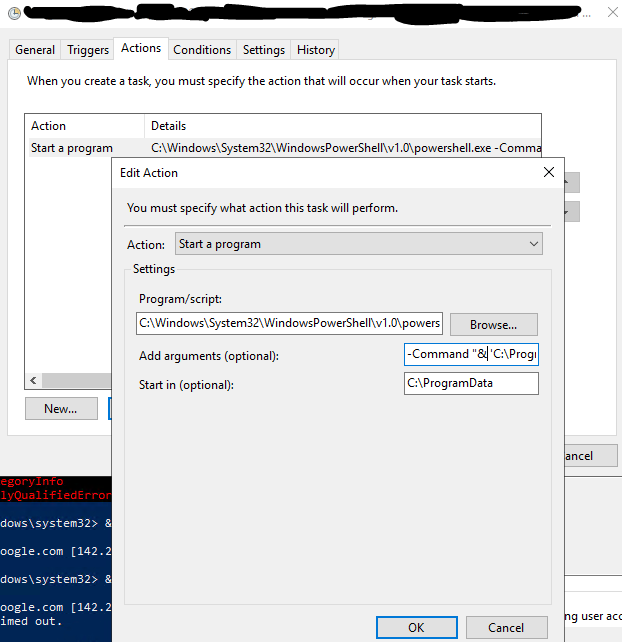
Example on How To Call a PowerShell Script:
- Set Action = Start a Program
- Set Program/Script =
C:\Windows\System32\WindowsPowerShell\v1.0\powershell.exe(must specify the full path of PowerShell in Windows) - Set Arguments =
-Command "& 'C:\Scripts\deleteLogsOlderThanXDays.ps1'" - Set Start-in =
C:\Scripts(or where ever the script resides) - If program would require Administrator context, don’t forget to set task to run with elevated permissions

