Update: pure command-line updated article is available in this new blog.
SSH into ESXi host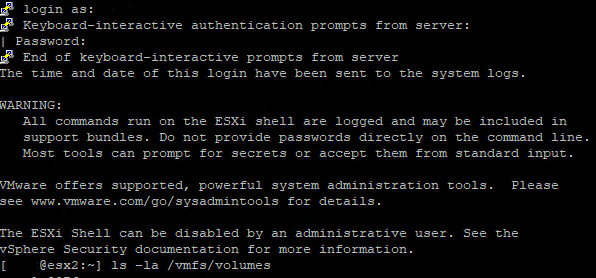
#Find volume name:
ls -la /vmfs/volumes

[admin@esx2:~] ls -la /vmfs/volumes
total 3076
drwxr-xr-x    1 root     root           512 May 27 01:35 .
drwxr-xr-x    1 root     root           512 May  4 01:23 ..
drwxr-xr-x    1 root     root             8 Jan  1  1970 508bb77a-fb9ab146-3b90-                             4a26b3a5efb4
drwxr-xr-x    1 root     root             8 Jan  1  1970 5ed456f4-f38365db-11e9-                             94c691ac4caa
drwxr-xr-t    1 root     root         73728 May 27 00:16 5ed456fa-5daa2d25-e3bd-                             94c691ac4caa
drwxr-xr-x    1 root     root             8 Jan  1  1970 5ed456fa-88463044-10c6-                             94c691ac4caa
drwxr-xr-t    1 root     root         73728 Jul 30  2020 5f222533-604a4190-0413-                             94c691ac4caa
lrwxr-xr-x    1 root     root            35 May 27 01:35 Micron-SSD-476GB -> 5f2                             22533-604a4190-0413-94c691ac4caa
lrwxr-xr-x    1 root     root            35 May 27 01:35 Pioneer-SSD-216GB -> 5e                             d456fa-5daa2d25-e3bd-94c691ac4caa
drwxr-xr-x    1 root     root             8 Jan  1  1970 ac080970-d1efc9cf-c76a-                             77500ed2402a

#List all instances in a volume:
volumeName=5ed456fa-5daa2d25-e3bd-94c691ac4caa
ls -la "/vmfs/volumes/$volumeName"

[admin@esx2:~] ls -la /vmfs/volumes/5ed456fa-5daa2d25-e3bd-94c691ac4caa
total 1476864
drwxr-xr-t    1 root     root         73728 May 27 00:16 .
drwxr-xr-x    1 root     root           512 May 27 01:41 ..
-r--------    1 root     root       3866624 Jun  1  2020 .fbb.sf
-r--------    1 root     root     134807552 Jun  1  2020 .fdc.sf
-r--------    1 root     root     268632064 Jun  1  2020 .jbc.sf
-r--------    1 root     root      16908288 Jun  1  2020 .pb2.sf
-r--------    1 root     root         65536 Jun  1  2020 .pbc.sf
-r--------    1 root     root     1074331648 Jun  1  2020 .sbc.sf
drwx------    1 root     root         69632 Jun  1  2020 .sdd.sf
-r--------    1 root     root       7340032 Jun  1  2020 .vh.sf
drwxr-xr-x    1 root     root         73728 May 27 00:16 ISOs
drwxr-xr-x    1 root     root         73728 May 27 01:31 Web02

#Create new folder to store a new VM instance
volumeName=5ed456fa-5daa2d25-e3bd-94c691ac4caa
newMachineName=Web03
destinationDirectory="/vmfs/volumes/$volumeName/$newMachineName"
mkdir $destinationDirectory

#Clone an existing machine with one disk file:
volumeName=5ed456fa-5daa2d25-e3bd-94c691ac4caa
machineName=Web02
newMachineName=Web03
vmkfstools -i "/vmfs/volumes/$volumeName/$machineName/$machineName.vmdk" "/vmfs/volumes/$volumeName/$newMachineName/$newMachineName.vmdk" -d thin

#Clone an existing machine with a snapshot
vmkfstools -i /vmfs/volumes/$volumeName/$machineName/$machineName-000001.vmdk /vmfs/volumes/$volumeName/$newMachineName/$newMachineName.vmdk -d thin

[admin@esx2:~] vmkfstools -i "/vmfs/volumes/$volumeName/$machineName/$machineName.vmdk" "/vmfs/volumes/$volumeName/$newMachineName/$newMachineName.vmdk" -d thin
Destination disk format: VMFS thin-provisioned
Cloning disk '/vmfs/volumes/5ed456fa-5daa2d25-e3bd-94c691ac4caa/Web02/Web02.vmdk'...
Clone: 100% done.

# The task of creating a virtual machine from VMDK requires plug-ins that are not included in the default instance of ESXi. Hence, it is necessary to perform that task via the GUI.
To perform the VM registration task via GUI:
Access vSphere Client > right-click the host > select New Virtual Machine >> select Custom > input new_machine_name > next > next > next > select the correct OS, next > next > delete the default hard drive > click on Add hard disk > select “existing hard disk”
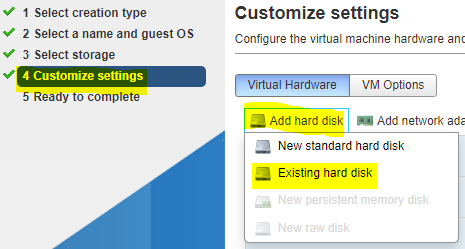
Browse to the newly cloned VMDK file > OK > next > next > Finish > power on new VM
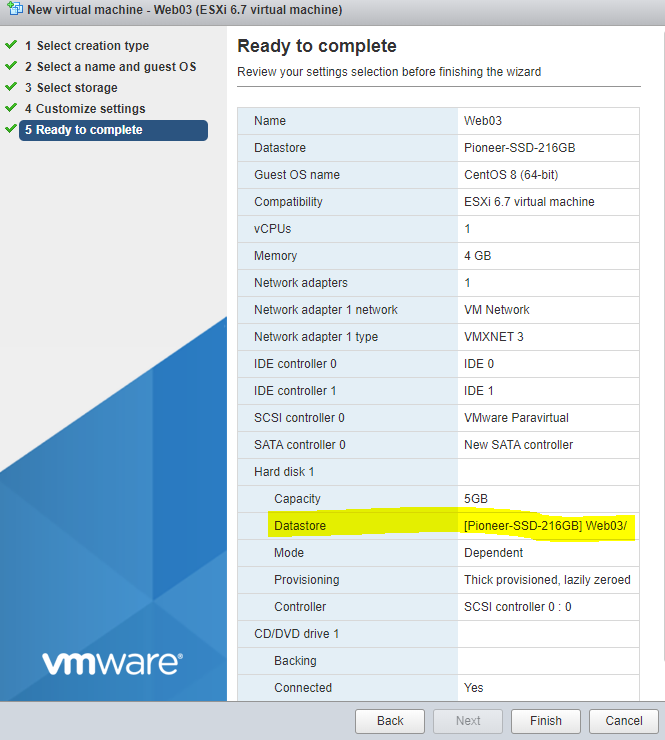
If Windows, run: C:\windows\system32\sysprep\sysprep.exe
If Linux, run: nmtui to change IP and hostname
Categories:
