Errors:
Can not connect to remote server: 5059 ERROR_CERTIFICATE_ERROR (unable to read server certificates from host=TESTDC.KIMCONNECT.com, port=636 error: java.net.SocketException: Connection reset) fields: [unable to read server certificates from host=TESTDC.KIMCONNECT.com, port=636 error: java.net.SocketException: Connection reset]
error connecting to ldap directory (default), error: unable to create connection: unable to bind to ldaps://TESTDC.KIMCONNECT.COM:636 as CN=test proxy,OU=Service Accounts,DC=kimconnect,DC=com reason: LDAP response read timed out, timeout used:30000ms.
Resolution
Install Active Directory certificates with these application policies:
- Client Authentication
- Server Authentication.
Please note that such services require Active Directory Lightweight Service (AD LS) and Active Directory Certificate Services (AD LS) Certification Authority (CA). On a member server, one would need install both components. Whereas, Domain Controllers already have the former available by means of being full-pledged DCs. This quick walk-through goes over both items.
Active Directory Lightweight Service
%systemroot%\ADAM\adaminstall.exe answerFile.txt

# Contents of answerFile.txt
[ADAMInstall]
InstallType=Unique
InstanceName=InstanceName
LocalLDAPPortToListenOn=PortNumber
LocalSSLPortToListenOn=PortNumber
NewApplicationPartitionToCreate=PartitionName
DataFilesPath=c:\ADAMInstances\InstanceName\Data
LogFilesPath=c:\ADAMInstances\InstanceName\Data
ServiceAccount=DomainorMachineName\AccountName
ServicePassword=Password
Administrator=Domain\GroupName
ImportLDIFFiles="LDIFFilename1" "LDIFFilename2" "LDIFFilename3"
SourceUserName=DomainorMachineName\AccountName SourcePassword=Password"
Active Directory Certificate Services:
Please be advised that the following instructions are assuming that the business requirement is to install a new Certification Authority on a Windows Server. There are cases where Subordinate Certification Authority would be more desirable. Please review this document prior to proceeding.
PowerShell Method
Install-WindowsFeature Adcs-Cert-Authority -IncludeManagementTools
Install-AdcsCertificationAuthority -CAType EnterpriseRootCa -CryptoProviderName "RSA#Microsoft Software Key Storage Provider" -KeyLength 2048 -HashAlgorithmName SHA256 -ValidityPeriod Years -ValidityPeriodUnits 10
# Sample Output:
PS C:\Windows\system32> Install-WindowsFeature Adcs-Cert-Authority -IncludeManagementTools
Success Restart Needed Exit Code Feature Result
------- -------------- --------- --------------
True No Success {Active Directory Certificate Services Too...

PS C:\Windows\system32> Install-AdcsCertificationAuthority -CAType EnterpriseRootCa -CryptoProviderName "RSA#Microsoft Software Key Storage Provider" -KeyLength 2048 -HashAlgorithmName SHA256 -ValidityPeriod Years -ValidityPeriodUnits 10

Confirm
Are you sure you want to perform this action?
Performing the operation "Install-AdcsCertificationAuthority" on target "TESTDC".
[Y] Yes [A] Yes to All [N] No [L] No to All [S] Suspend [?] Help (default is "Y"):

ErrorId ErrorString
------- -----------
0

PS C:\Windows\system32> certutil -verifystore MY
MY "Personal"
================ Certificate 0 ================
Serial Number: chicken4f86achicken42a0efchickenb
Issuer: CN=TESTDC-CA, DC=kimconnect, DC=com
NotBefore: 8/13/2010 9:42 PM
NotAfter: 8/13/2010 9:51 PM
Subject: CN=TESTDC-CA, DC=kimconnect, DC=com
CA Version: V0.0
Signature matches Public Key
Root Certificate: Subject matches Issuer
Cert Hash(sha1): chicken54988b0a23a757chickena4a13d5a8
Key Container = TESTDC-CA
Unique container name: abc123_chickenbob
Provider = Microsoft Software Key Storage Provider
Signature test passed
Verified Issuance Policies: All
Verified Application Policies: All
Certificate is valid
CertUtil: -verifystore command completed successfully.
# Verify presence of key container
PS C:\Windows\system32> ls C:\ProgramData\Microsoft\Crypto\Keys\

Directory: C:\ProgramData\Microsoft\Crypto\Keys

Mode LastWriteTime Length Name
---- ------------- ------ ----
-a--s- 8/13/2010 9:52 PM 1567 abc123_chickenbob
GUI Method
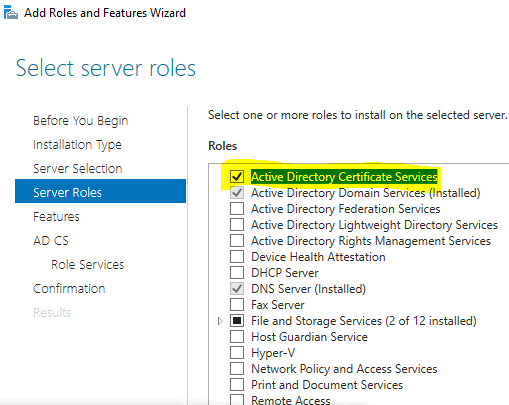
Run Server Manager > Manage > Add Roles and Features > select ‘Role-based or feature based installation > Next > Next > put a check mark next to ‘Active Directory Certificate Services > Add Features > Next > Next > Next
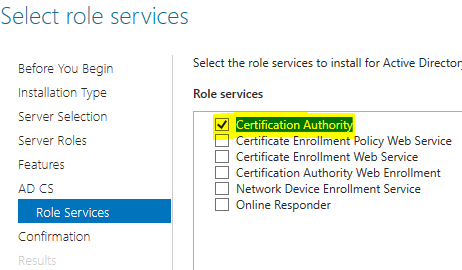
Mark ‘Certification Authority’ > Next > Install
After AD CS role has been added > run AD CS Configuration wizard > input a Local Administrator credential > Next > select ‘Certification Authority’ > Next > select ‘Enterprise CA’ > Next > Choose ‘Root CA’ > Next > accept option ‘Create a new private key’ > Next > pick ‘RSA#Microsoft Software Key Storage Provider’ key length 2048 with hashing algorithm of SHA256 (or higher security if desired) > Next > input the ‘Common name’ to match the server name, enter the value of the ‘distinguished name suffix’ > Next > change value to ’10’ years > Next > Next > Configure > wait for completion > close
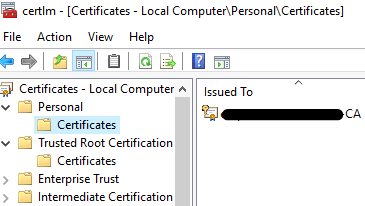
To verify, Run Certlm.msc > Personal > Certificates