Symptom:
Cluster resource of type 'Virtual Machine' in clustered role failed. The error code was '0x37' ('The specified network resource or device is no longer available.').
Solution:
There are several probable causes, and these are outlined below:
- Antivirus interfering with VM files.
- Follow these Recommended antivirus exclusions for Hyper-V hosts: https://learn.microsoft.com/en-us/troubleshoot/windows-server/virtualization/antivirus-exclusions-for-hyper-v-hosts
- Network adapter drivers with certain queuing features that cause problems
- Check the event log for these errors:
-
System Event ID 113: Failed to allocate VMQ for NIC NINTENDO-C66A-4FCC-8395-CONTRA2--LUIGI-2F98-4DC4-A7CD-ZELDA (Friendly Name: test-vm) on switch NINTENDO-398C-49B1-B493-SUPERMARIO3 (Friendly Name: Trunk). Reason - Maximum number of VMQs supported on the Protocol NIC is exceeded. Status = Insufficient system resources exist to complete the API.
- Either run this PowerShell script OR use the GUI method below
- Run ncpa.cpl > right-click a NIC card or NIC Team > highlight ‘Microsoft Network Adapter Multiplexor Protocol > click Configure
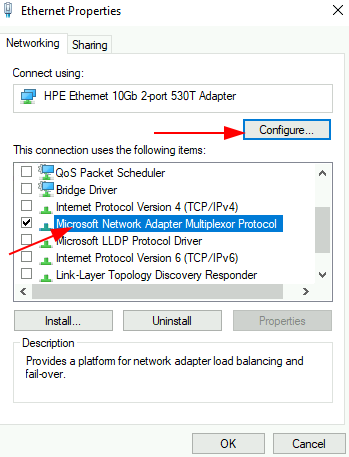
Click ‘Yes’ on this prompt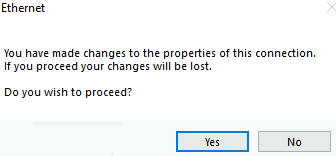
Select the ‘Advanced’ tab > Locate ‘Virtual Machine Queues’, ‘Virtual Machine Queues – Shared Mumu’, ‘Virtual Machine Queues – VLAND Id Something’ > change its value to Disabled > OK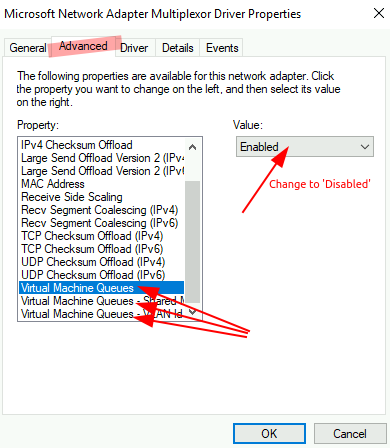
Categories:
