Before running the below script, it’s necessary to mark certain IIS App pools and websites to automatically start. Hence, those services are expected to be up at all times. Here’s are some some quick instructions on how to enable that:
Run InetMgr.exe > Navigate to Application Pools > right-click an App Pool item > Advanced Settings…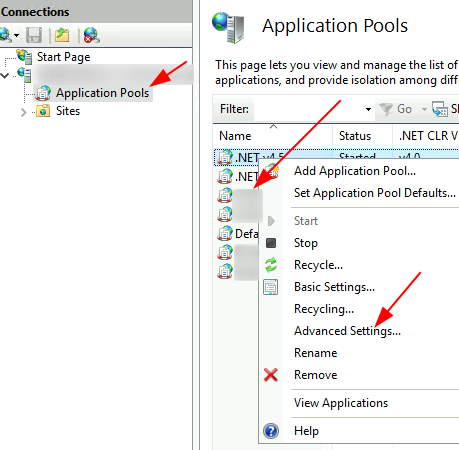
Set Start Mode = ‘AlwaysRunning’ > OK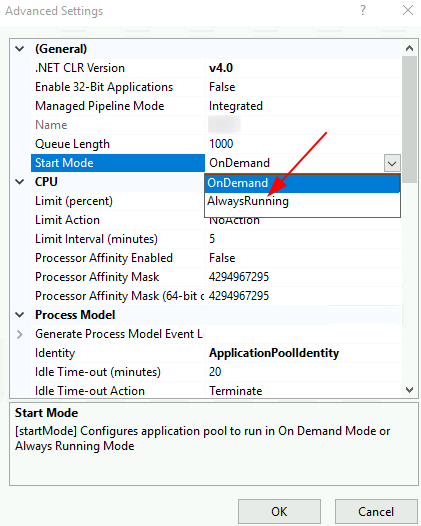
$servers='IRV-WEBSERVER05'
$results=[PSCustomObject]@{}
Invoke-Command -ComputerName $Servers {
    Import-Module -Name WebAdministration
    $sites=Get-Website|Where-Object serverAutoStart -eq $true
    foreach ($site in $sites) {
        switch ($site) {
            {(Get-WebAppPoolState -Name $_.applicationPool).Value -eq 'Stopped'} {
                write-host "$($_.applicationPool) is stopped. Restarting it..."
                try{
                    Start-WebAppPool -Name $_.applicationPool -ea Stop
                    $errors='none'
                }catch{
                    $errors=$_
                    Write-Warning $errors
                    }
                }finally{
                    $results+=@{
                        computername=$env:computername
                        item=$_.applicationPool
                        errorMessage=$errors
                        }
                }
            {$_.State -eq 'Stopped'} {
                write-host "$($site.Name) is stopped. Restarting it..."
                try{
                    Start-Website -Name $site.Name -ea Stop
                    $errors='none'
                }catch{
                    $errors=$_
                    Write-Warning $errors
                }finally{
                    $results+=@{
                        computername=$env:computername
                        item=$site.Name
                        errorMessage=$errors
                        }
                }
            }
        }
    }
}

write-host ($results|out-string).trim()
Categories:
