Posted On March 29, 2019

Connecting to Dell EqualLogic PS series SAN using Cisco console cable (72-3383-01)

kimconnect 0 comments
blog.KimConnect.com >> Windows >> Connecting to Dell EqualLogic PS series SAN using Cisco console cable (72-3383-01)
If a console cable isn’t available, one may create one using an existing Cisco cable (72-3383-01) by snipping and discarding the RJ45 end > re-crimp a new RJ45 using the following pin out / wire color diagram:
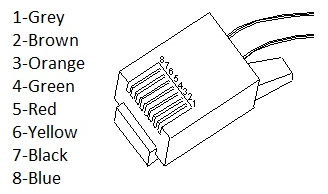
 

Once the cable has been created, connect the DB9 end to a computer.  Connect the RJ45 end into the SERIALPORT on the back of the SAN that looks like this:

 

Now open Putty on the computer the DB9 end is connected to and configure Putty with the following settings:
            Set the Connection Type: to Serial
            On the left under Category > Connection > Serial, configure the following settings:
                         Speed:  9600
                        Data bit:  8
                        Stop bits:  1
                        Parity:  None
                        Flow control:  XON/XOFF
When the console comes up hit the Enter key and you should then be prompted to login.

Leave a Reply

Your email address will not be published. Required fields are marked *

Related Post

IT Security Compliance

To prepare an organization for compliance of Section 404 of COBIT (Control Objectives for Information…

How To Install Graylog in a Kubernetes Cluster Using Helm Charts

The following narrative is based on the assumption that a Kubernetes (current stable version 20.10)…

GPO Logon Banner

Update: this information is outdated. Use this link for the current method of creating Logon…
