Posted On April 8, 2019

How to Use QRadar to Search for a Windows Account Activities

kimconnect 0 comments
blog.KimConnect.com >> Windows >> How to Use QRadar to Search for a Windows Account Activities

Log into https://qradar/console/qradar/jsp/QRadar.jsp

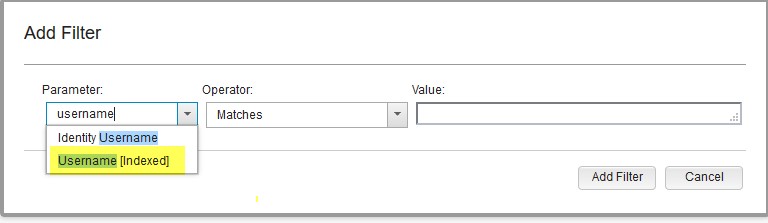
Log Activity > Add Filter > Parameter=Username[Indexed] | Operator=Equals any of | Value=”UserName” > click on ‘+’ sign > click Add Filter
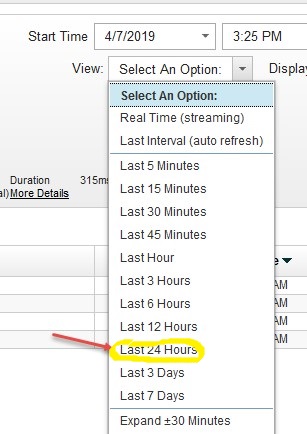
Click on View > Selection An Option = Last 24 hours
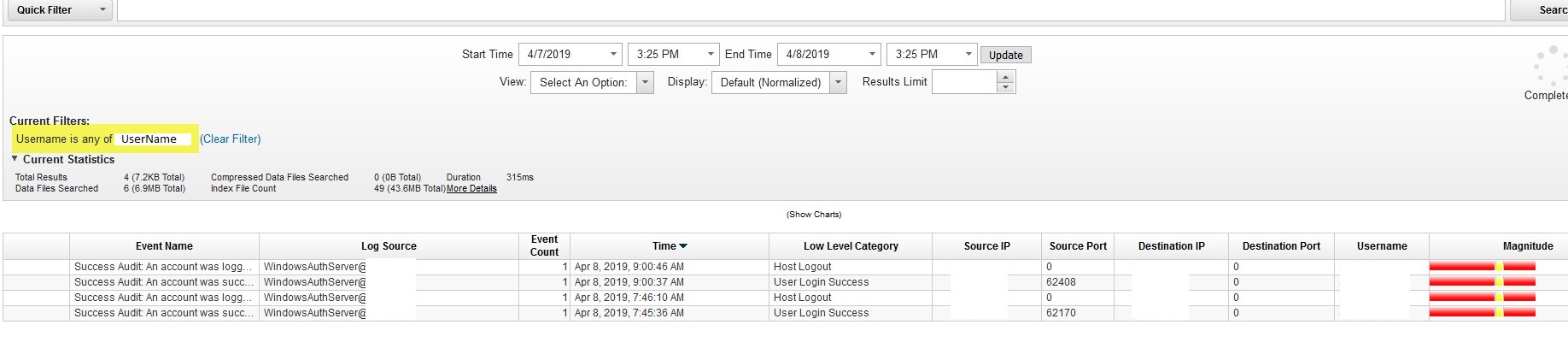
Wait for progress to complete > view through any resulting item
Leave a Reply

Your email address will not be published. Required fields are marked *

Related Post

Quick PowerShell Cmdlet to Move Computer Object

$computername='SomeComputerName' $targetOU='OU=Computers,DC=kimconnect,DC=com' Move-ADObject -Identity (Get-ADComputer $computername).objectguid -TargetPath $targetOU

PowerShell: How To Configure Static IP Address

$nicName='NIC1' $ipaddress='192.168.0.222' $cidrPrefix=24 $defaultGateway='192.168.0.1' $dnsServers=@('8.8.8.8','4.4.2.2') $disableIpv6=$true function setNic($nicName,$ipAddress,$cidrPrefix,$defaultGateway,$dnsServers,$disableIpv6=$true ){ $ifIndex=(get-netadapter|?{$_.Name -eq $nicName}).ifIndex New-NetIPAddress -InterfaceIndex $ifIndex…

PowerShell: Enable TLS 1.2 on Windows

function enableTls12{ try{ $null=New-Item 'HKLM:\SYSTEM\CurrentControlSet\Control\SecurityProviders\SCHANNEL\Protocols\TLS 1.2\Server' -Force $null=New-Item 'HKLM:\SYSTEM\CurrentControlSet\Control\SecurityProviders\SCHANNEL\Protocols\TLS 1.2\Client' -Force $null=New-ItemProperty -Path 'HKLM:\SYSTEM\CurrentControlSet\Control\SecurityProviders\SCHANNEL\Protocols\TLS 1.2\Server'…
Other project: DragonCoin.com