Posted On January 14, 2020

Active Directory: How to Disable Account

kimconnect 0 comments
blog.KimConnect.com >> Windows >> Active Directory: How to Disable Account

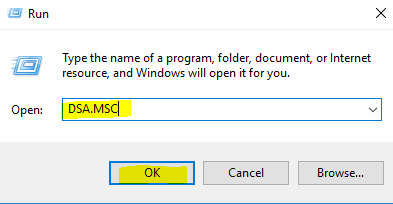
RDP into a domain controller > Right-click the Windows icon on the bottom left corner > type in DSA.MSC > press Enter
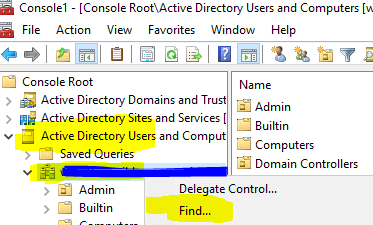
Expand the domain name > right-click on the domain object > Find…
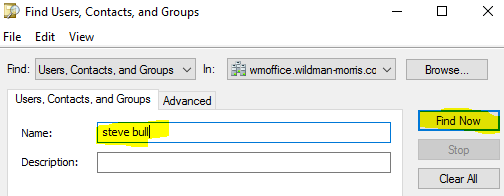
Input the name of the user in the “Name” field > click Find Now
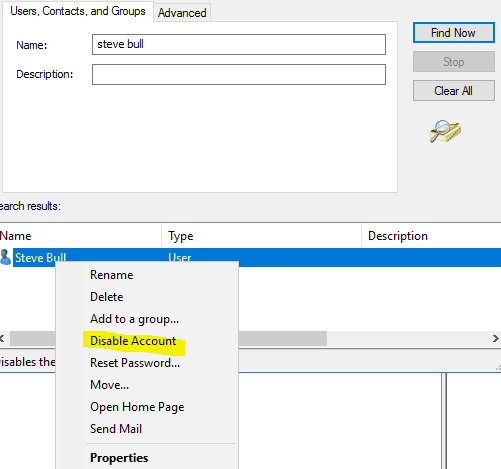
Select “Disable Account”
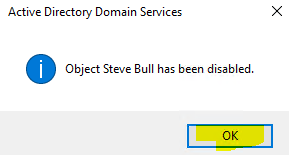
Click OK to confirm
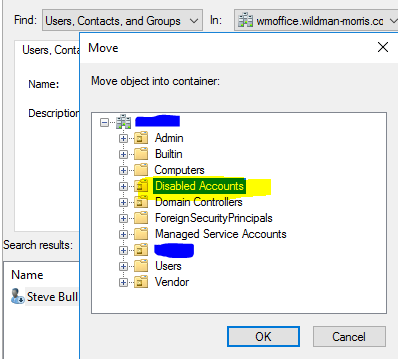
Right-click the disabled account > Move > select the “Disabled Accounts” container
Leave a Reply

Your email address will not be published. Required fields are marked *

Related Post

Enabling Unix Newline ‘LF’ Support for Windows 10 Version 1706 or Higher

Please note that the following PoSH commands won't work on earlier versions of Windows (e.g.…

Websense Filtering Precedence

1.  Username 2.  Workstation IP 3.  Network Range 4.  User Groups 5.  OU Structure 6. …

Fix DFS Replication Problems

1. Remove failed server from Replication Group 2. Right-click "System Volume Information" >> Properties >>…
