Three Quick Steps to Adding ADMX
Administrative templates are the blue prints of Windows machines. Adding this feature would enable advanced registry controls of managed machines within Group Policies. By default, Active Directory does not automatically install the template files (ADMX & ADML). Hence, it would require the System Admin to perform this task to activate such plug-ins.
1. Review the template files from this list: https://learn.microsoft.com/en-us/troubleshoot/windows-client/group-policy/create-and-manage-central-store
2. Install the desired template (e.g. onto the local workstation. The extracted files would most likely be located at “C:\Program Files (x86)\Microsoft Group Policy\Windows 10 November 2019 Update (1909)\PolicyDefinitions”
3. Copy the Definitions file to the AD Central Store
robocopy “C:\Program Files (x86)\Microsoft Group Policy\Windows 10 November 2019 Update (1909)\PolicyDefinitions” “\\$env:USERDNSDOMAIN\sysvol\$env:USERDNSDOMAIN\Policies\PolicyDefinitions” /E /R:0 /NP
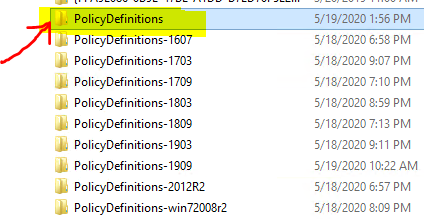
4. Optional: prune extraneous language files/directories to save storage space
5. Add other templates as necessary, such as Google & Chrome
a. Chrome: https://support.google.com/chrome/a/answer/7650032?hl=en&ref_topic=7649835
b. Firefox: https://github.com/mozilla/policy-templates/releases
Please note that each .ADMX file must be accompanied by a corresponding .ADML as Windows would complain about missing expected files when GPMC or ADUC is initiated.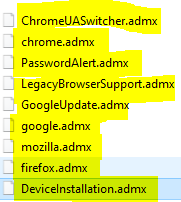
How to Use Administrative Templates to Enable Loopback Processing
Note: loopback processing is an advanced function that enables the User Configuration Settings to target Computer Objects. This can cause unexpected behaviors if not used correctly. Hence, extensive consultation with experienced System Admins (*ehem* guys like me) is advised.
Run “GPMC.msc” > navigate to Forest {forest_name} > Domains > {domain_name.ltd} > Group Policy Objects > right-click a GPO that is currently targeting Users > Edit > Computer Configuration > Policies > Administrative Templates > System > select Group Policy > double-click “Configure user Group Policy loopback processing mode” > Enabled=True, Mode=Merge > OK > close the Group Policy Management Editor

