PS C:\Users\kimconnect> get-nettcpsetting | select SettingName,DynamicPortRangeStartPort,DynamicPortRangeNumberOfPorts

SettingName      DynamicPortRangeStartPort DynamicPortRangeNumberOfPorts
-----------      ------------------------- -----------------------------
Automatic
InternetCustom   49152                     16384
DatacenterCustom 49152                     16384
Compat           49152                     16384
Datacenter       49152                     16384
Internet         49152                     16384
Step 1: discover inbound ports that are actively used
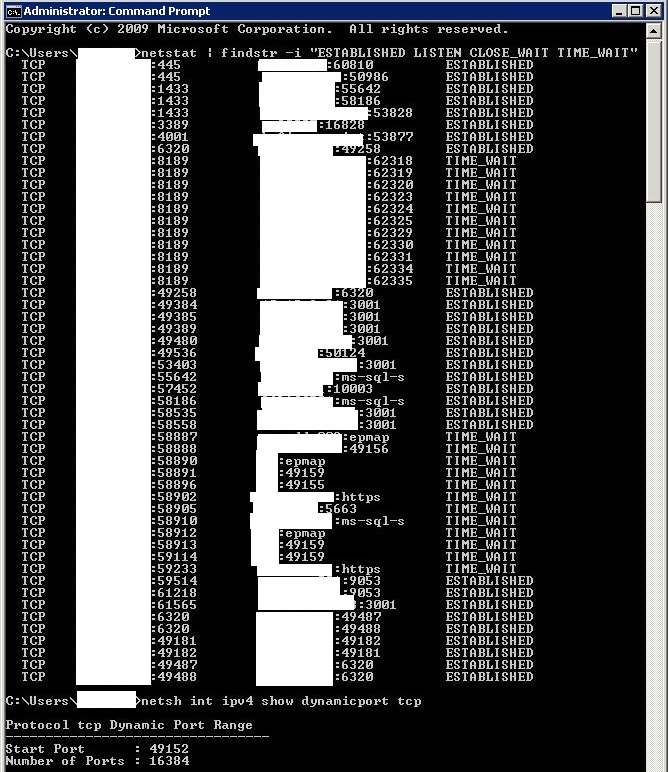
netstat | findstr -i "ESTABLISHED LISTEN CLOSE_WAIT TIME_WAIT"
Step 2: find all outbound dynamic ports that are expected to be allowed through the firewalls
netsh int ipv4 show dynamicport tcp
Please note that the output of this command does not explicitly provide the named end-port. Thus, we must add the “starting port” number with the “number of ports” to derive at that value. In the example below, 49152 + 16384 = 65536
Categories: