
Posted On May 14, 2019

How to Install Virtualbox in Ubuntu

kimconnect 0 comments
blog.KimConnect.com >> Linux , Virtualization >> How to Install Virtualbox in Ubuntu

Simply run these two commands:

sudo add-apt-repository multiverse && sudo apt-get update
sudo apt -y install virtualbox virtualbox-ext-pack

Answer ‘OK’ and ‘Yes’ to accept licensing prompts from Oracle
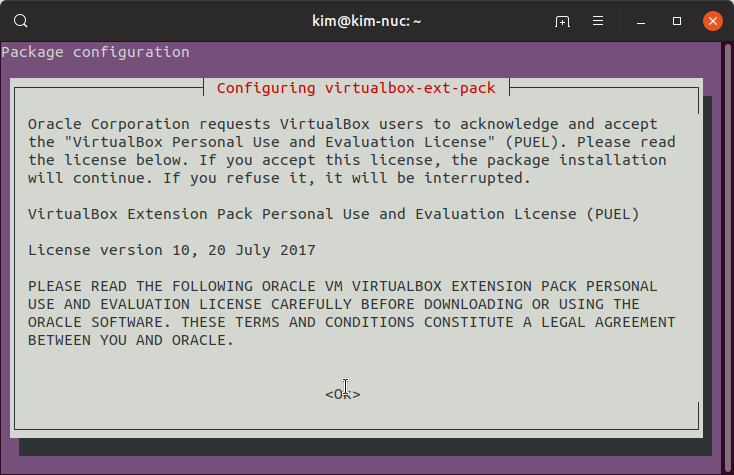
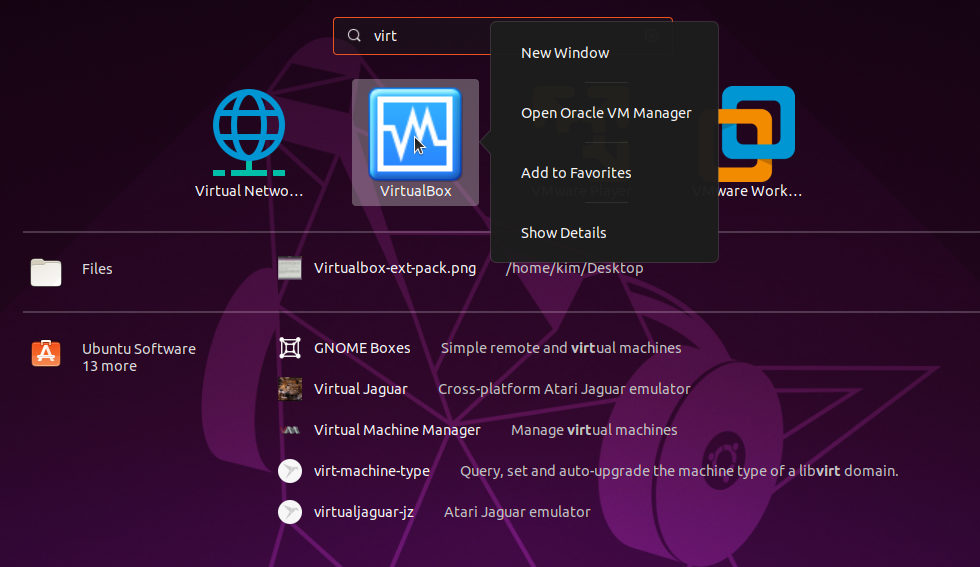
When installation finishes, it’s often preferable to add a link to the application by navigating to the apps menu > search for virtualbox > right-click it > add to favorites
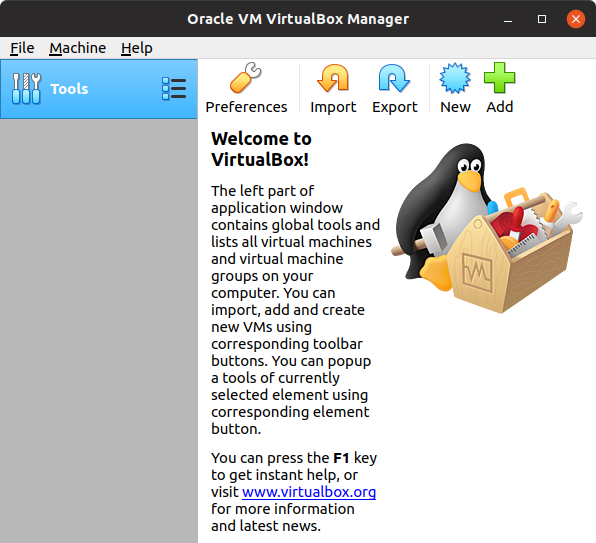
Trigger VirtualBox app to start using the almost freeware
How to Re-install VirtualBox:

$ sudo apt remove --purge virtualbox$ sudo modinfo vboxdrv # this is to completely clear previous version's drivers
$ sudo apt install virtualbox
$ sudo apt install virtualbox-dkms
$ sudo /usr/sbin/vboxconfig # reconfigure to match existing environment

Leave a Reply

Your email address will not be published. Required fields are marked *

Related Post

NGINX

# Create nginx.repovim /etc/yum.repos.d/nginx.repo#### content ####[nginx]name=nginx repo baseurl=http://nginx.org/packages/mainline/centos/$releasever/$basearch/ gpgcheck=0 enabled=1###############sudo yum update nginxsudo service nginx…

PowerShell: Get Quorums of All Clusters in the Domain

# getClusterQuorum.ps1 function getClusterQuorum{ $allClusters=(get-cluster -domain $env:USERDNSDOMAIN).Name $results=@{} foreach ($cluster in $allClusters){ $quorum=Get-ClusterQuorum -Cluster $cluster…

Linux: How to Check CPU Speed

# Check cpu capacity kim@kim-linux:~$ sudo lshw -c cpu | grep capacity capacity: 3600MHz #…
