Prelude: this instruction only works on HP iLO versions 2 to 4; hence, the title of this post. Version 5 and up will be addressed in another document.
1. Install HP Insight Management Agents on the target machine
- Windows: https://support.hpe.com/connect/s/softwaredetails?language=en_US&softwareId=MTX_b22bcbd9b2af4d43a1a42f8d09)
- Linux/VMWare:
2. Extract the HP Lights-Out Online Configuration Utility using 7-zip (https://www.7-zip.org/download.html)
- Download for Windows: hponcfg.zip > extract to to C:\Temp\iLO
Right-click on zip file > 7-zip > Extract files…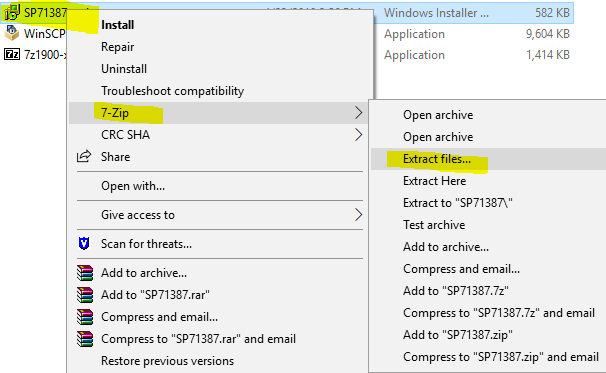
Set “Extract to” = C:\Temp\iLO > OK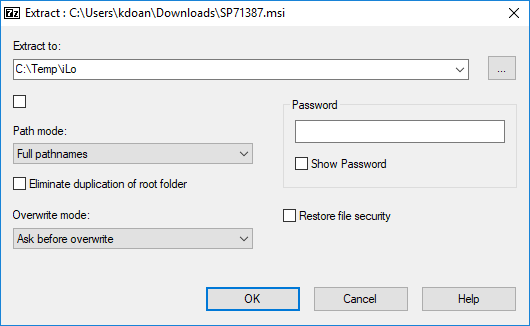
- Linux: https://support.hpe.com/connect/s/softwaredetails?language=en_US&softwareId=MTX_5ab6295f49964f16a699064f29
3. Prepare the HP Lights-Out XML Script and save it into C:\Temp\iLo
<!--Save as file name: Admin_reset_pw.xml -->
<!--https://support.hpe.com/hpsc/swd/public/detail?swItemId=MTX_2e178c5435a742d5bbb60a3b0c-->
<!--         RIBCL Sample Script for HP Lights-Out Products          -->
<!--Copyright (c) 2003,2012 Hewlett-Packard Development Company, L.P.-->

<!-- Description: This is a sample XML script to set the default     -->
<!--              Administrator account password using HPONCFG.EXE.  -->

<!-- NOTE:  You will need to replace the USER_LOGIN and PASSWORD     -->
<!--        and other values inside the quotation marks with values  -->
<!--        that are appropriate for your environment.               -->

<!--        Use this script with HPONCFG to install a known password -->
<!--        for the Administrator account.  HPONCFG requires that you-->
<!--        log into Windows or Linux with administrator or root     -->
<!--        credentials.                                             -->

<!--        Note that this assumes that there is an Administrator    -->
<!--        account because it is not intended to create one.  The   -->
<!--        LOGIN credentials are ignored when used with HPONCFG.    -->

<!--        After this script has been used successfully with HPONCFG-->
<!--        you may login using the credentials: "Administrator" and -->
<!--        "password".                                              -->

<!--        Use CPQLOCFG.EXE ver 4.00 or greater with this script.   -->

<!--        This script was written for iLO 4 firmware version 1.01  -->
<!--        release.                                                 -->

<!--        See "HP Integrated Lights-Out Management Processor       -->
<!--        Scripting and Command Line Resource Guide" for more      -->
<!--        information on scripting and the syntax of the RIBCL     -->
<!--        XML.                                                     -->

<!--        Firmware support information for this script:            -->
<!--            iLO 4 - All versions.                                -->
<!--            iLO 3 - All versions.                                -->
<!--            iLO 2 - All versions.                                -->
<!-- Modify only the value in this line <PASSWORD value="password"/> -->
<RIBCL VERSION="2.0">
   <LOGIN USER_LOGIN="Administrator" PASSWORD="password">
      <USER_INFO MODE="write">
         <MOD_USER USER_LOGIN="Administrator">
            <PASSWORD value="password"/>
         </MOD_USER>
      </USER_INFO>
   </LOGIN>
</RIBCL>
4. Run the commands
a. Windows
C:\Temp\iLO\HPONCFG.exe /f Admin_reset_pw.xml /l Admin_reset_log.txt > output.txt
Error:
C:\WINDOWS\system32\sm2user.dll NOT FOUND.
Fix:
That error informs the user that HP Management Agents haven’t been installed on the host OS. This is a prerequisite as noted in step 1 of this write up.
b. Linux/VMWare
#Check for the presence of hponcfg
ls -l /opt/hp/tools

#Create reset xml file
vi iloreset.xml

#Paste the contents of file in step 3

#Excecute reset
/opt/hp/tools/hponcfg -f iloreset.xml
Categories: