Posted On October 8, 2020

Jenkins: How to Clone a Job

kimconnect 0 comments
blog.KimConnect.com >> Windows >> Jenkins: How to Clone a Job

To create a new job, use this quick how-to. This instruction is a quick walk-through to clone an existing job…

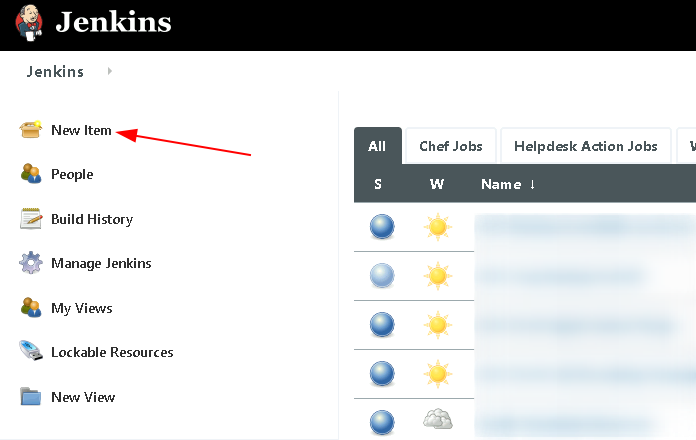
Login to Jenkins > click on ‘New Item’
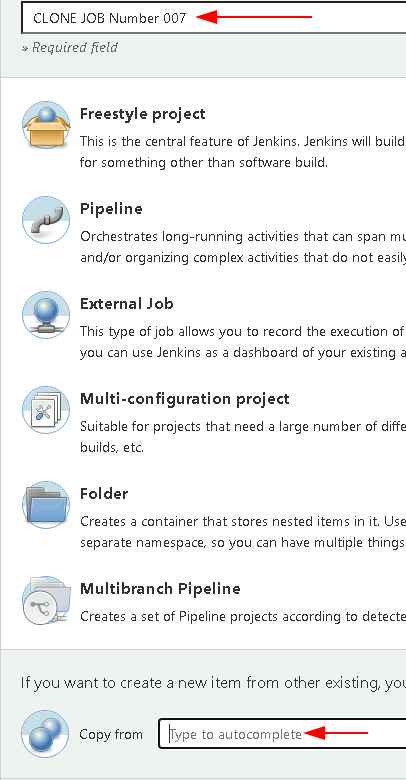
Input a Name for the New Job > type in the source Job name in the ‘Copy from’ field
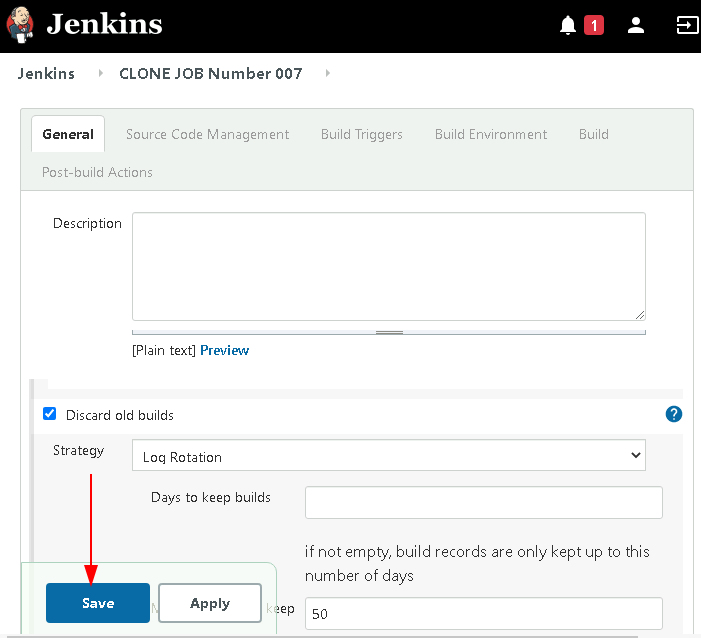
click OK > verify the job details on the next screen’s General tab > click Save
Leave a Reply

Your email address will not be published. Required fields are marked *

Related Post

How To Quickly Search a User in Active Directory by Matching Email

This one liner would do the trick: Get-ADUser -Filter {EmailAddress -eq '[email protected]'} PS C:\Windows\system32> Get-ADUser…

One-Liner: Capture Report of Logons in AD

echo %date%,%time%,%username%,logon,%computername% >> \\FILESERVER01\IT\scripts\logons.csv

PEN TEST

Kali Linux: Pen testing Linux Distro: https://www.kali.org/get-kali/ VMware Images: https://www.kali.org/get-kali/#kali-virtual-machines AirCrack-NG: WIFI Acunetix: Web Servers…
