This unabridged note contains some usable copy/paste lines to work with Windows updates. There’s a comprehensive Windows Golden Image setup that simplifies the process of generating a pristine template, which is outside the scope of this chicken-scratch blob…
Check if proxy is enabled in the current Windows Server:
PS C:\WINDOWS> (Get-ItemProperty -Path "Registry::HKCU\Software\Microsoft\Windows\CurrentVersion\Internet Settings").ProxyEnable
1
If proxy is enabled (result=1), then set winhttp to use the desired proxy
# Set winhttp proxy with exclusion list
$proxy="http://proxy:8080";
$exclusionList="localhost;*.kimconnect.com"
netsh winhttp set proxy $proxy $exclusionList

# Allow System to use Default Credentials to authenticate to proxy
[system.net.webrequest]::defaultwebproxy = New-Object system.net.webproxy($proxy)
        [system.net.webrequest]::defaultwebproxy.credentials = [System.Net.CredentialCache]::DefaultNetworkCredentials
        [system.net.webrequest]::defaultwebproxy.BypassProxyOnLocal = $true
Finally, run this command to install updates
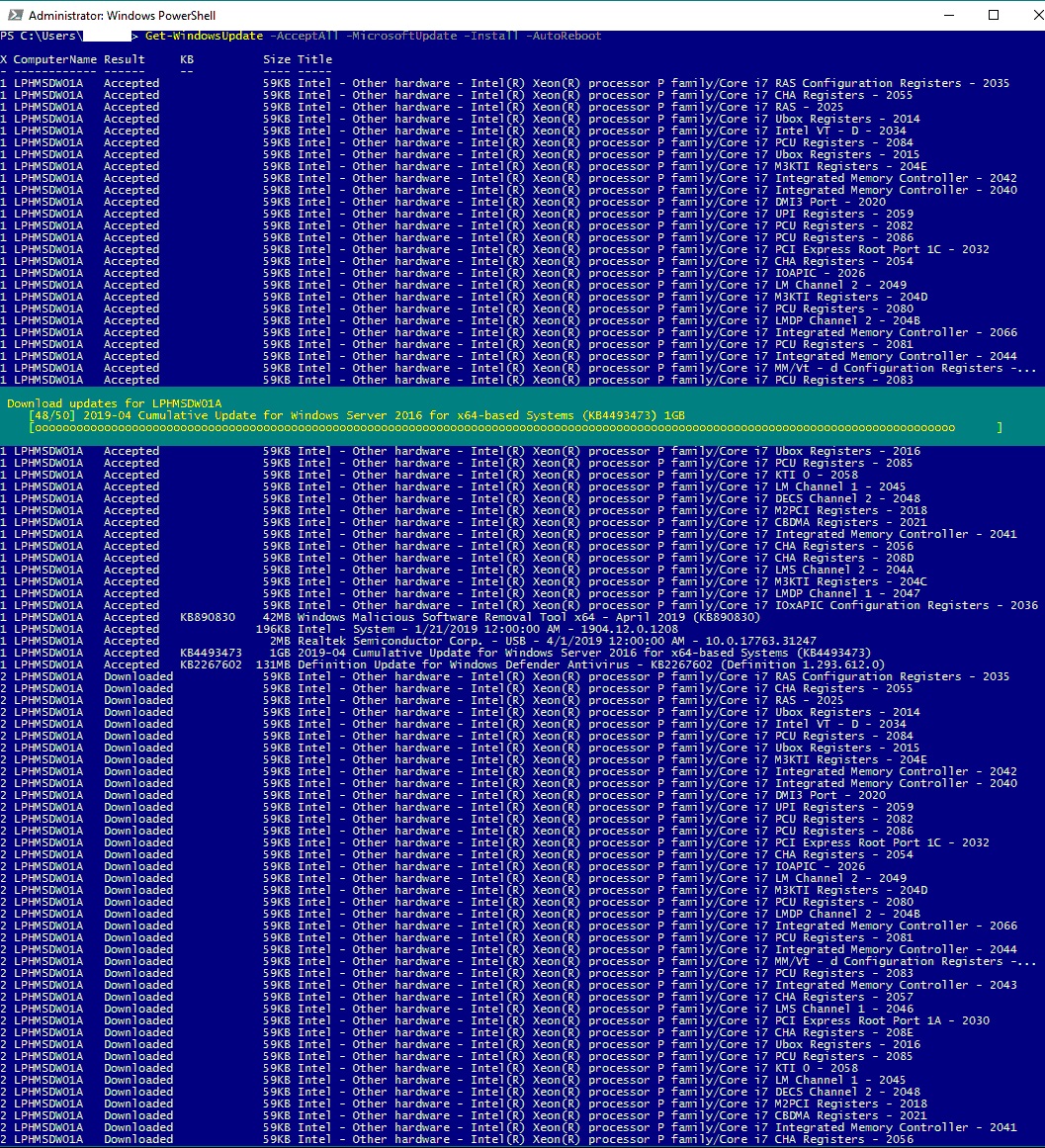
Get-WindowsUpdate -AcceptAll -MicrosoftUpdate -Install -AutoReboot
To Disable Windows Update:
reg add "HKEY_LOCAL_MACHINE\SOFTWARE\Microsoft\Windows\CurrentVersion\WindowsUpdate\Auto Update" /v AUOptions /t REG_DWORD /d 1 /f

## OR ##

sc config wuauserv start= disabled
To Enable Windows Update:
reg add "HKEY_LOCAL_MACHINE\SOFTWARE\Microsoft\Windows\CurrentVersion\WindowsUpdate\Auto Update" /v AUOptions /t REG_DWORD /d 0 /f

## OR ##

sc config wuauserv start= auto
To Pause Windows Update Service:
net stop wuauserv
net stop bits
net stop dosvc
To Resume Windows Update Service:
net start wuauserv
net start bits
net start dosvc
To Force Windows to check for updates:
wuauclt /detectnow /updatenow
Windows 10 PowerShell:
Install-Module PSWindowsUpdate
Get-WindowsUpdate
Install-WindowsUpdate

# Module agnostic
(New-Object -ComObject Microsoft.Update.AutoUpdate).DetectNow()
VBS Script to apply to remote servers:
https://community.spiceworks.com/t/windows-update-agent-force-script-email-results-version-2-8/971180
To forcefully reset Windows updated packages, it may be necessary to rename the Software Distribution folder. It is located in the Windows root directory and used to temporarily store files which may be required to install Windows Update on your computer. WUAgent depends on this during its run-time.
Ren %systemroot%\SoftwareDistribution SoftwareDistribution.bak
Ren %systemroot%\system32\catroot2 catroot2.bak
shutdown -r -t 0
Legacy Service Packs:
Starting with Windows 8, Microsoft has paused the releases of service packs in favor of distributing patches via the centralized repos. Thus, it’s a good idea to keep this list of items for older machines.
| Windows Updates & Service Packs | |||
|---|---|---|---|
| Operating System | Service Pack / Update | Size (MB) | Download |
|
Windows 7 Windows Server 2008 |
SP2 | 316 | 32-bit |
| 477 | 64-bit | ||
| SP1 | 538 | 32-bit | |
| 903 | 64-bit | ||
| Windows Vista3 | SP2 | 476 | 32-bit |
| 578 | 64-bit | ||
| Windows XP | SP3 | 316 | 32-bit |
| SP2 | 351 | 64-bit | |
| Windows 2000 | SP4 | 0.59 | 32-bit |
Downloading and applying services packs is straight forward. Here’s a screenshot of the wizard.
Windows 7 SP1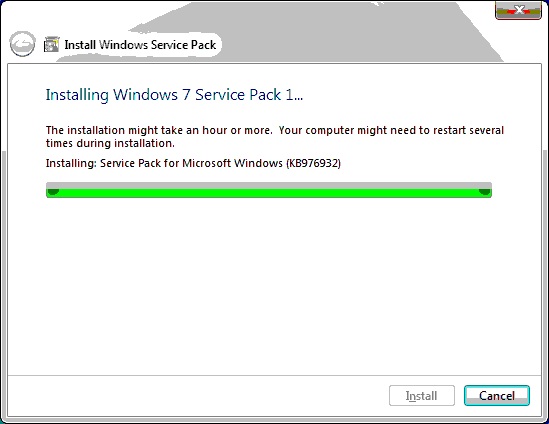
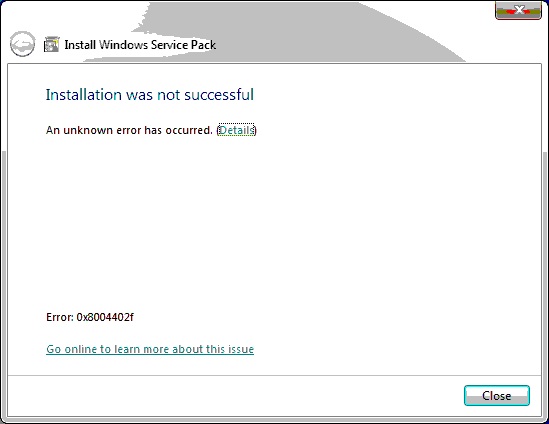
Be advised that applying services packs may not always go as planned. This is an error to show a sample of these exceptional cases.
error: 0x8004402f