Target for Windows upgrade cleanup:
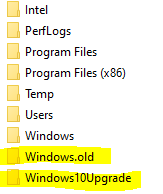
C:\$Windows.~BT\*
C:\$Windows.~LS\*
C:\$Windows.~WS\*
C:\ESD\Download\*
C:\ESD\Windows\*
C:\$WINDOWS.~Q\*
C:\$INPLACE.~TR\*
C:\Windows.old\*
C:\Windows\Panther
Please be advised that C:\Windows.old may still store program files that are still in-use by the system. A brute-force purge of this directory may render previously installed applications to be inadvertently removed as well. Thus, one must follow proper process when trying to free up disk space by removing this directory.
A less intrusive method would be as shown below to achieve a result similar to this output: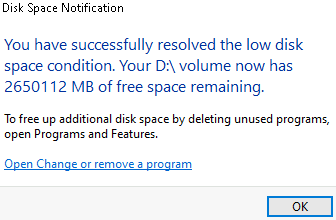
# Source: https://learn.microsoft.com/en-us/windows-server/administration/windows-commands/cleanmgr

# Analyze and remove system files left over from a previous Windows version/in-place upgrade
# CLEANMGR.exe /Autoclean /VeryLowDisk
# Nope, this cmdlet switch doesnt do anything

# cleanup all drives - command below is equivalent to 'cleanmgr /sageset:1 and cleanmgr /sagerun:1'
<# System volume C:\ will enable the wizard to purge these:
Temporary Setup Files,
Downloaded Program Files,
Temporary Internet Files,
Old Chkdsk Files,
Recycle Bin,
Temporary Files,
Temporary Offline Files,
Offline Files,
Compress Old Files,
Catalog Files for the Content Indexer
#>
# The other volumes will only have 2 options: Recycle Bin and Catalog files for content index
if(!(get-command cleanmgr -ea silentlycontinue)){
Copy-Item -Path C:\Windows\WinSxS\x86_microsoft-windows-cleanmgr.resources_31bf3856ad364e35_6.3.9600.16384_en-us_f2763474b4405afa\cleanmgr.exe.mui -Destination C:\Windows\System32\en-US
Copy-Item -Path C:\Windows\WinSxS\wow64_microsoft-windows-cleanmgr_31bf3856ad364e35_6.3.9600.16384_none_685740be65e399a2\cleanmgr.exe -Destination C:\Windows\System32
}
(Get-Volume).DriveLetter|%{cleanmgr.exe /d $_ /VeryLowDisk}
Categories:
