Posted On September 16, 2021

Windows: Disable Automatic Restart After Updates

kimconnect 0 comments
blog.KimConnect.com >> Windows >> Windows: Disable Automatic Restart After Updates

1. Run gpedit.msc as Administrator
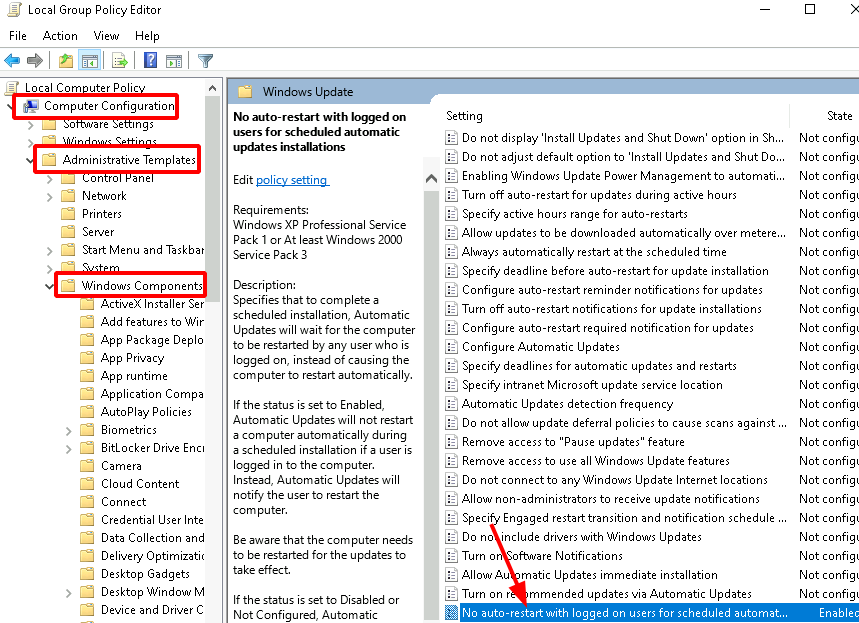
2. Navigate to Local Group Policy Editor > Computer Configuration > Administrative Templates > Windows Components > Windows Update
3. Double-click on “No auto-restart with automatic installations of scheduled updates”
4. Select “Enabled”, and then click “OK”
5. Close the local group policy editor
Leave a Reply

Your email address will not be published. Required fields are marked *

Related Post

Google G Suite Administrators (GAM) Useful Commands

Install Google GAM if (!(Get-Command choco.exe -ErrorAction SilentlyContinue)) {[Net.ServicePointManager]::SecurityProtocol = [Net.SecurityProtocolType]::Tls12Set-ExecutionPolicy Bypass -Scope Process -Force;…

Wireshark Overview

SysAdmins, InfoSec, and Network Engineers often use this tool to troubleshot and detect network activities…

Use DISM To Install Windows Features

Deployment Image Servicing and Management (DISM.exe) is a command-line tool that can be used to…
