Error Message:
---------------------------
Computer Name/Domain Changes
---------------------------
Changing the Primary Domain DNS name of this computer to "" failed. The name will remain "domain.ltd".
The error was:

The specified domain either does not exist or could not be contacted.
---------------------------
OK
---------------------------
Resolution:
Source: https://learn.microsoft.com/en-us/troubleshoot/windows-server/active-directory/fail-to-join-computer-to-ad-domain
- Check NETSETUP.LOG
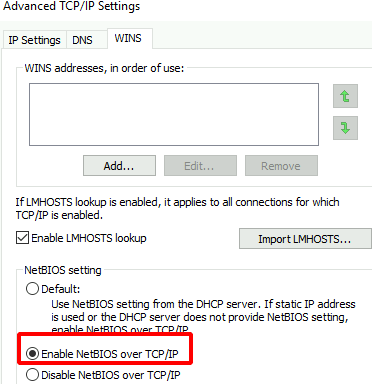
Verify that NetBIOS over TCP/IP is enabled.
- Click Start, click Run, type ncpa.cpl, and then click OK.
- In Network Connections, right-click Local Area Connection, and then click Properties.
- Click Internet Protocol Version 4 (TCP/IPv4), and then click Properties.
- In the Internet Protocol Version 4 (TCP/IPv4) Properties dialog box, click Advanced.
- On the WINS tab, verify Enable NetBIOS Over TCP/IP is enabled, and then click OK three times.
Verify end-to-end network connectivity over UDP port 137 over the network path connecting the client being and the helper DC serving the join operation.
If the error occurred in an IPv6 only environment or you require a fix to resolve the error, open a support incident with Microsoft Customer Service and Support requesting a post RTM fix for Windows 7/Windows Server 2008 R2.
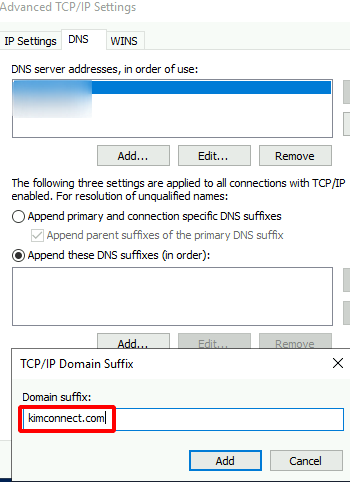
Add Domain DNS Suffix in the TCP/IP Properties.
- Click Start, click Run, type ncpa.cpl, and then click OK.
- In Network Connections, right-click Local Area Connection, and then click Properties.
- Click Internet Protocol Version 4 (TCP/IPv4), and then click Properties.
- In the Internet Protocol Version 4 (TCP/IPv4) Properties dialog box, click Advanced.
- On the DNS tab, select these DNS Suffixes, click Add, type the FQDN of the domain in the DNS Server dialog box, click Add, and then click OK three times.
Categories:
