Desired Result:
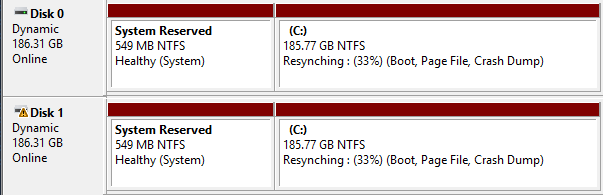
Required Work:
# Check disks
DISKPART> list disk
Disk ### Status Size Free Dyn Gpt
-------- ------------- ------- ------- --- ---
* Disk 0 Online 186 GB 0 B *
Disk 1 Offline 186 GB 186 GB
Disk 2 No Media 0 B 0 B

# Set disks online
DISKPART> select disk 1
DISKPART> online disk
DiskPart successfully onlined the selected disk.

# Clean disk
DISKPART> clean
DiskPart succeeded in cleaning the disk.

# Convert disks to become the same type, either MBR or GPT
DISKPART> convert mbr
DiskPart successfully converted the selected disk to MBR format.

# convert to dynamic as required for software mirroring
DISKPART> select disk 1
Disk 1 is now the selected disk.
DISKPART> convert dynamic
DiskPart successfully converted the selected disk to dynamic format.

# Check for existing volumes
DISKPART> list volume
Volume ### Ltr Label Fs Type Size Status Info
---------- --- ----------- ----- ---------- ------- --------- --------
Volume 0 C NTFS Simple 185 GB Healthy Boot
* Volume 1 System Rese NTFS Simple 549 MB Healthy System
Volume 3 E DVD-ROM 0 B No Media
Volume 4 F SSS_X64FREV UDF CD-ROM 4618 MB Healthy
Volume 5 G Removable 0 B No Media

# Mirror the first stripe of disk 0, which is often 'System Reserved'
DISKPART> select volume 1
Volume 1 is the selected volume.
DISKPART> add disk=1
DiskPart succeeded in adding a mirror to the volume.

# Mirror the first stripe of disk 0, which is often 'Boot'
DISKPART> select volume 0
Volume 0 is the selected volume.
DISKPART> add disk=1
DiskPart succeeded in adding a mirror to the volume.
Extra jibberish:
DISKPART> select disk 1
Disk 1 is now the selected disk.

DISKPART> list part

Partition ### Type Size Offset
------------- ---------------- ------- -------
Partition 3 Dynamic Data 992 KB 31 KB
Partition 1 Dynamic Data 549 MB 1024 KB
Partition 2 Dynamic Data 185 GB 550 MB
Partition 4 Dynamic Data 216 KB 186 GB

DISKPART> Sel part 1
Partition 1 is now the selected partition.

DISKPART> delete partition override
Virtual Disk Service error:
The operation is not supported by the object.
The specified command or parameters are not supported on this system.
DISKPART> convert basic
DiskPart successfully converted the selected disk to basic format.
DISKPART> list part
There are no partitions on this disk to show.
DISKPART> select part 1
The specified partition is not valid.
Please select a valid partition.
There is no partition selected.

# How to break a mirrored volume
diskpart
select volume c
break disk=1
remove disk=1
Categories:
