Posted On September 16, 2021

Windows: Disable Automatic Restart After Updates

kimconnect 0 comments
blog.KimConnect.com >> Windows >> Windows: Disable Automatic Restart After Updates

1. Run gpedit.msc as Administrator
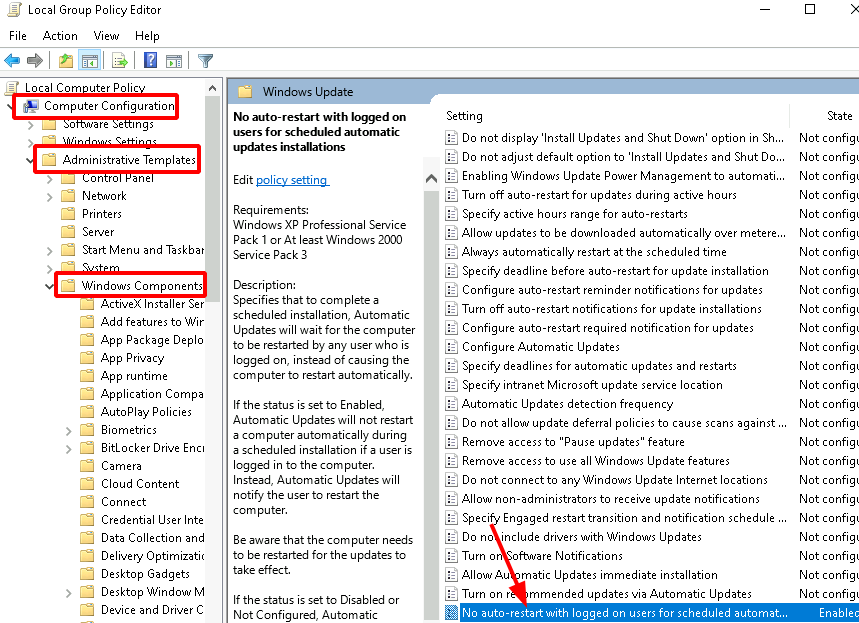
2. Navigate to Local Group Policy Editor > Computer Configuration > Administrative Templates > Windows Components > Windows Update
3. Double-click on “No auto-restart with automatic installations of scheduled updates”
4. Select “Enabled”, and then click “OK”
5. Close the local group policy editor
Leave a Reply

Your email address will not be published. Required fields are marked *

Related Post

RDP Connection Error: CredSSP encryption oracle remediation

The Symptom: [Window Title]Remote Desktop Connection[Content]An authentication error has occurred.The function requested is not supportedRemote…

Command line to stop, start, or restarting services

- Discover service names: #net start - Restart specific service: net stop {service_name} && net…

Java Virtual Machine Optimal Memory Tuning

Overview: There are five available garbage collectors (GC) for Java Virtual Machines (JVM). Here are…
