If the user gets a message similar to this:
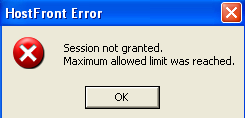
Then we need to end the session so that the user can reconnect…
Resetting a Host Front connection:
-
Signon to HOSTFRONT01 with the administrator password.
-
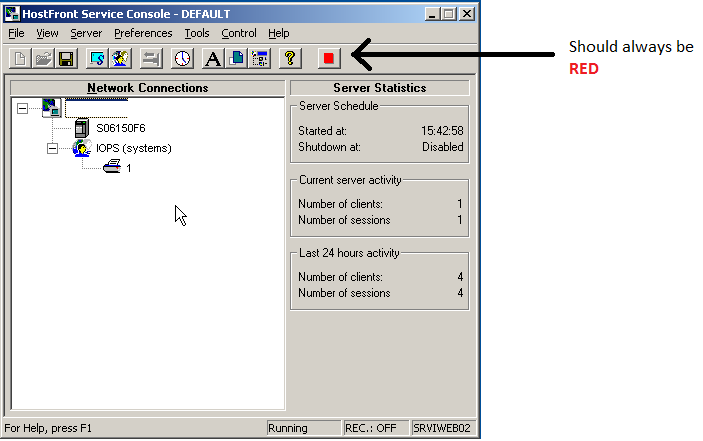
Unlock the computer with the same user and password. The Host Front window should be open.
-
Highlight the user and the “Disconnect Client” icon will become active. (Button 6 from the left).
-
Click the “Disconnect Client” button and the “Do you want to disconnect the active client” message will pop up. Answer yes. This will disconnect the client and they should be able to sign on again and print.
-
If not, get the printer name from the user. It will be in the lower right corner of their Host Front Screen. Or, before disconnecting, put the cursor over the printer icon and it will display the name. Once you have this information, call Raul and ask him to “kill” that printer session.
-
Have the user connect and print.
Categories: