Posted On October 8, 2020

Jenkins: How to Clone a Job

kimconnect 0 comments
blog.KimConnect.com >> Windows >> Jenkins: How to Clone a Job

To create a new job, use this quick how-to. This instruction is a quick walk-through to clone an existing job…

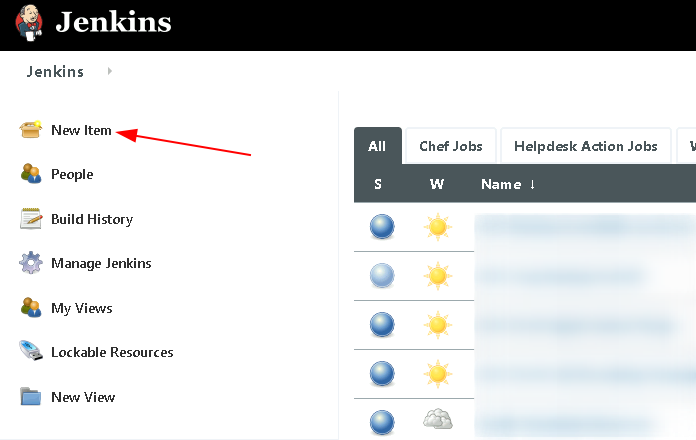
Login to Jenkins > click on ‘New Item’
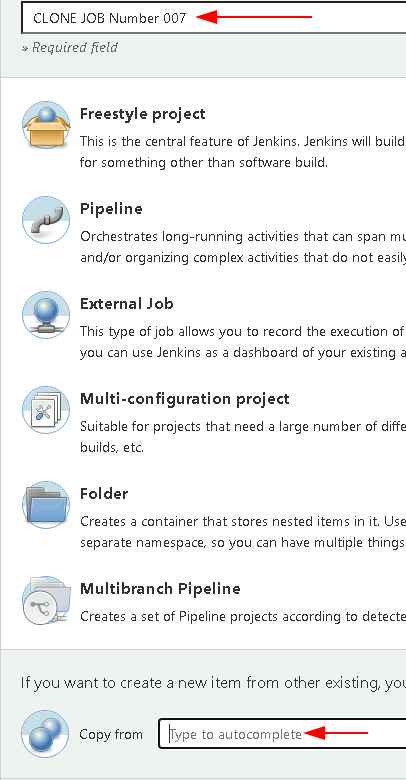
Input a Name for the New Job > type in the source Job name in the ‘Copy from’ field
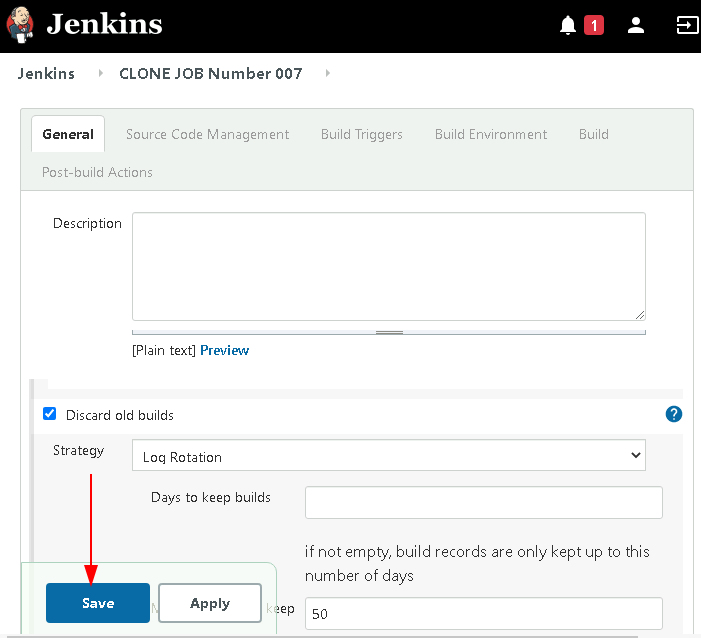
click OK > verify the job details on the next screen’s General tab > click Save
Leave a Reply

Your email address will not be published. Required fields are marked *

Related Post

Windows 2012 Advantages

1. Dynamic Access Control: automatically apply access restriction to certain files that contain sensitive information,…

How to Use the ‘Advanced Find’ Feature in Dynamics 365

Step 1: Login and click on Le Button Access your CRM portal with a valid…

Converting from IOPS to MB/s

Conversion factors: from IOPS to MiB/s Throughput is a function of Input/Output per second (IOPS)…
