0. If the deployment package is in an .EXE format, it’s recommended that such file be converted into an MSI using this tool: https://www.exemsi.com/download/
1. Make MSI Accessible at Distribution Point
– Use a network share that is accessible to targeted domain users
– Copy the MSI executable into that share (e.g. “\\fs\software\Polycom\Polycom_BToE_Connector_4.0.0.0 (new for 2019-07-19)\Polycom_BToE_Connector_4.0.0.0.msi”
2. Create Group Policy
– Create New GP: Group Policy Management > navigate to Forest > Domains > {Domain Name} > Group Policy Objects > scan for any related policies; if none is found, right-click Group Policy Objects > New > follow the wizard to create a blank GP with a recognizable name
– Edit GP: Right-click on newly created GP > edit > Computer Configuration > Policies > Software Settings > right-click Software Installation > New > Package > input the UNC path toward MSI distribution > Open > select Assigned > OK > Click on Deployment tab > Advanced > put a check mark next to “Ignore language when deploying this package” > OK > OK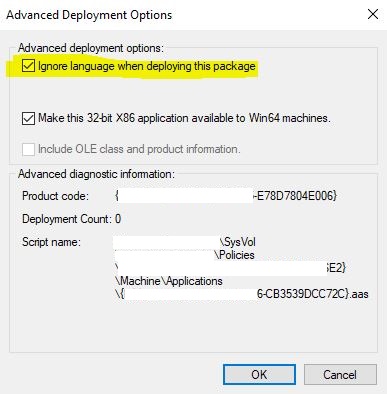
Repeat these steps to set User Configurations > Policies > Software Settings… Close GP Edit when done.
3. Apply GP toward Targets
– Navigate toward appropriate OU > right-click it > Link and Existing GPO > Select the correct GPO > OK
– ADUC > View > Advanced Settings > right-click domain name > Find > change the Find objects to Computers > input a value of targeted Windows machine in Computer Name > Find Now > right click on resulting object > move > relocate computer object into the Labs OU
– On the target PC, either reboot computer or run gpupdate/force, logout & re-login
