This instruction applies to the major browsers: Internet Explorer, Chrome, Firefox, and Opera. Note that this does not affect PowerShell, and that is addressed in another post.
It’s a common Intranet environment issue that local sites use built-in certificates that are not from a known Certificate Authority. Thus, modern browsers will flag these certs as invalid with a marker such as this:
Once a site is flagged, scripts from that portal are often blocked as well. Hence, it’s a good idea to add local sites into the “Trusted sites” list on the local system. This can be done via GPO. In this illustration, a local Windows machine shall be configured with a known trusted site:
Click on the Run or Windows emblem at the bottom left corner > type in “inetcpl.cpl” without the quotes > Enter > the Internet Properties window should appear > select the Security tab > Select Trusted Sites > click on Sites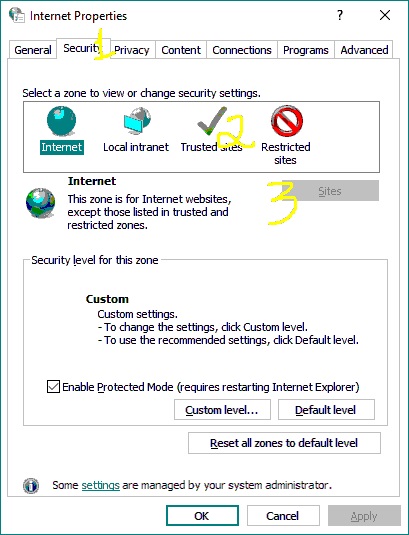
Input the local domain in this format *.DOMAIN.LTD > uncheck the “Require server verification (https:) for all sites in this zone” option > Add > Close > OK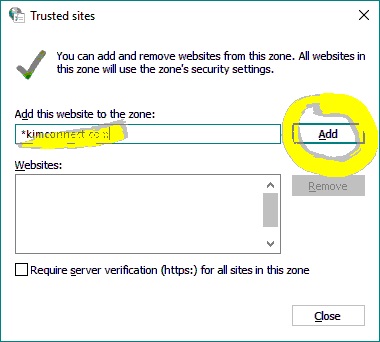
To realize the changes, restart the browser (Internet Explorer or Chrome). The marker should now show as secured with the lock symbol 
Alternative Method:
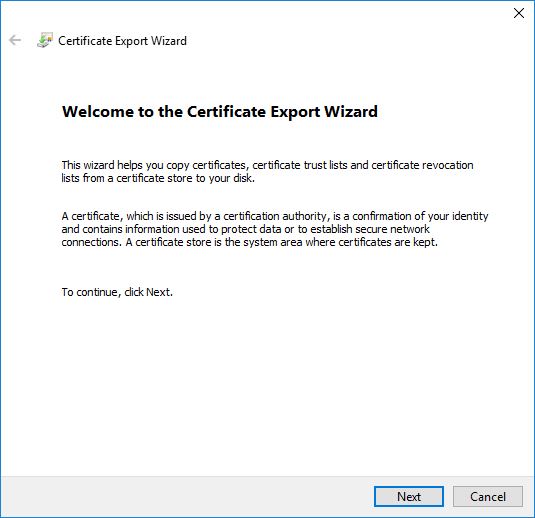
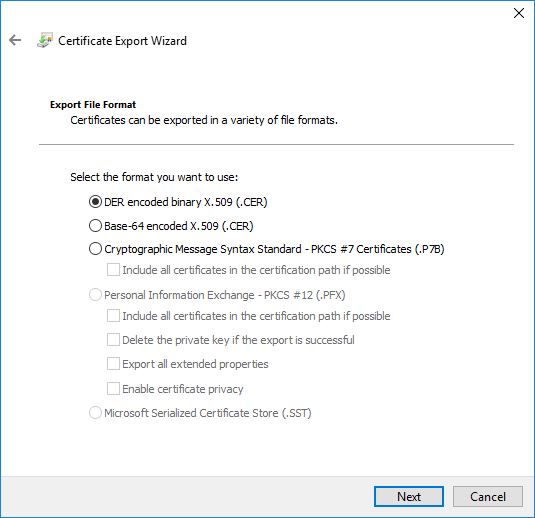
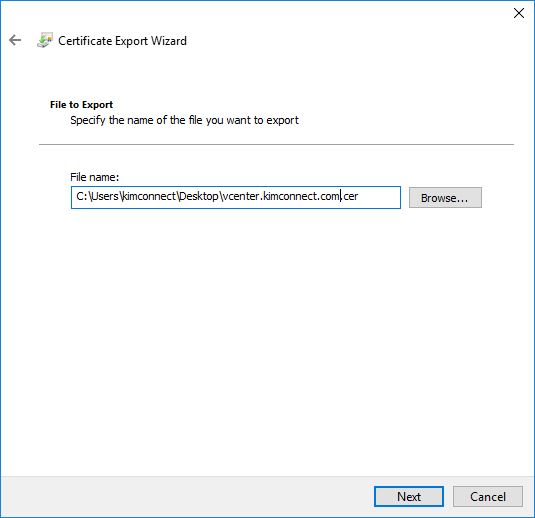
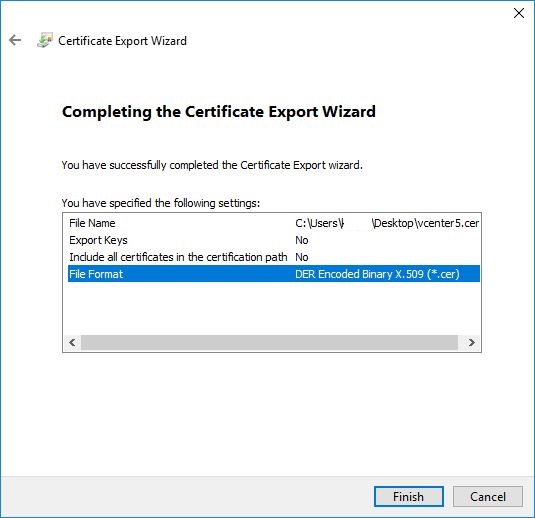
Export the Cert…
Access the URL using Chrome > click on the “Not Secure” warning > Export Certificate > Follow the screen shots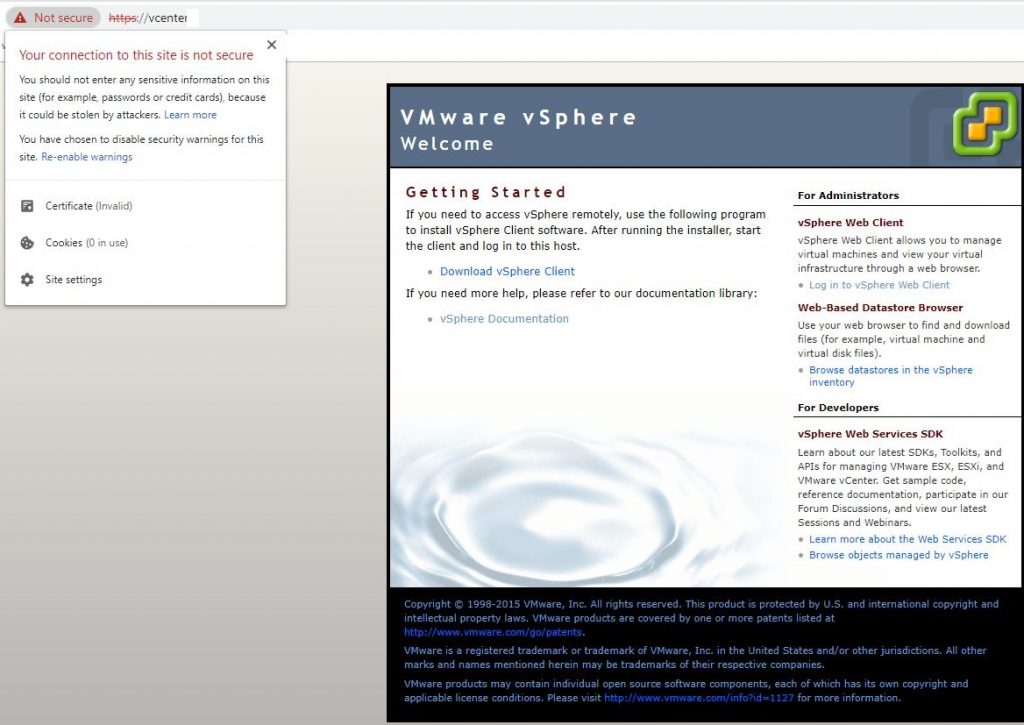
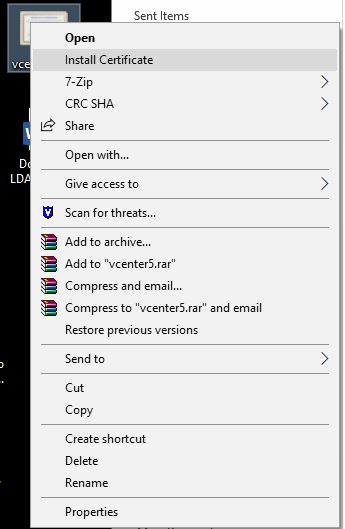
Import the Cert…
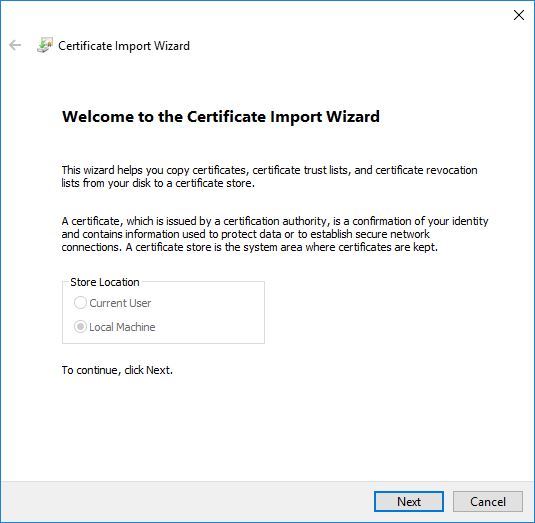
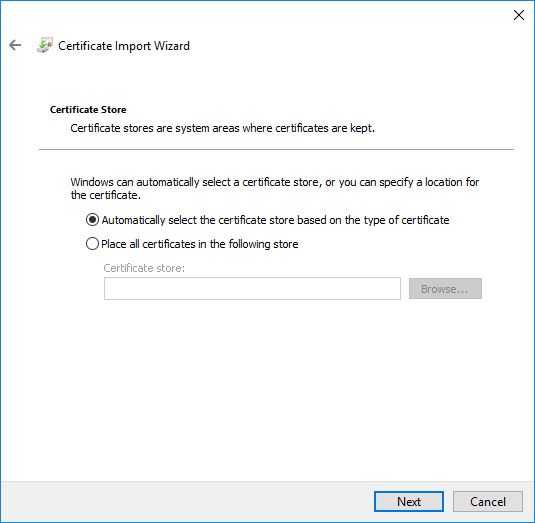
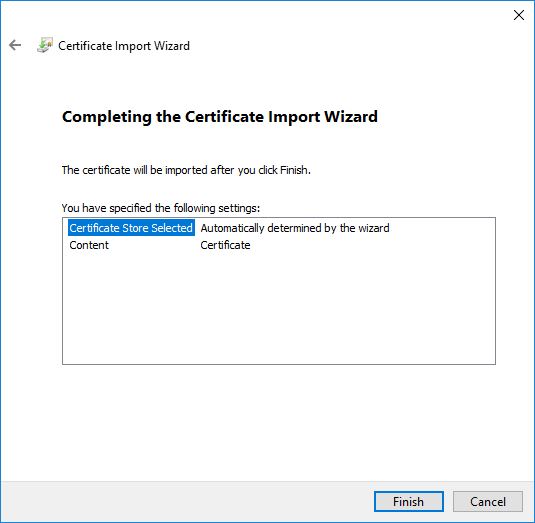
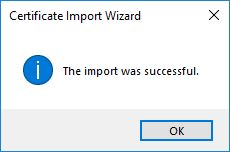
Locate the file > right-click it > Install Certificate > follow the wizard