Proliant Gen8 Blade Servers
HP Servers are often chosen as VMWare & Hyper-V hosts. To further optimize these “pizza boxes” for their intended purposes, here are the steps to prep these things:
At cold boot, select the “System Options” menu > choose option “Disabled” for each NICs from “Network Boot” capability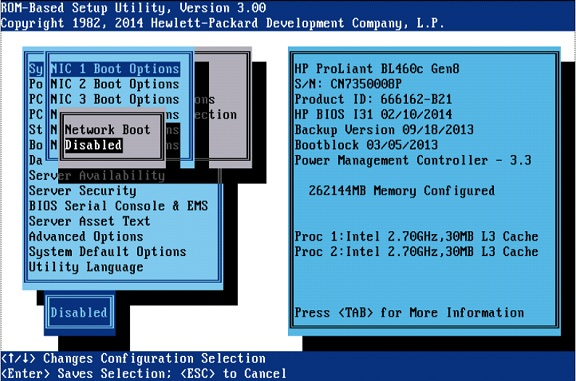
“Power Management Options” menu > “HP Power Profile” > select “Maximum Performance”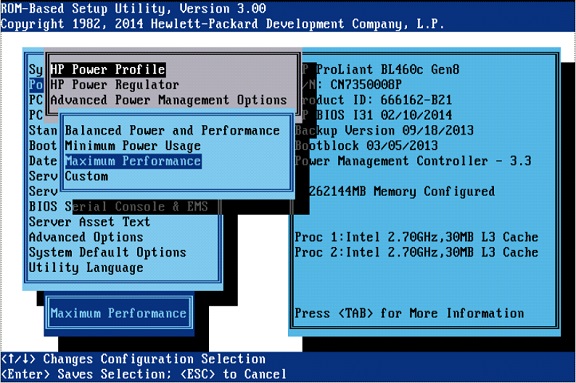
“Power Management Options” menu > “Advanced Power Management Options” > select “Maximum Performance” for the “Memory Power Savings Mode”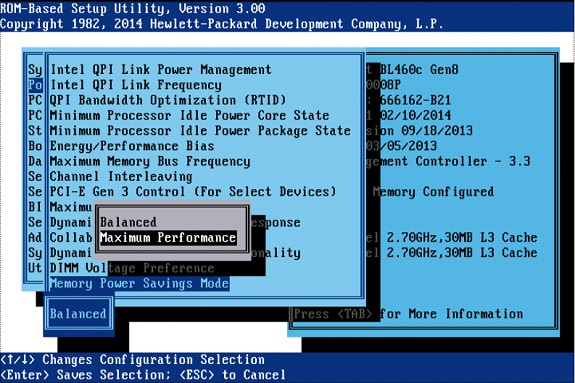
Set the correct date and time in the “Date and Time” menu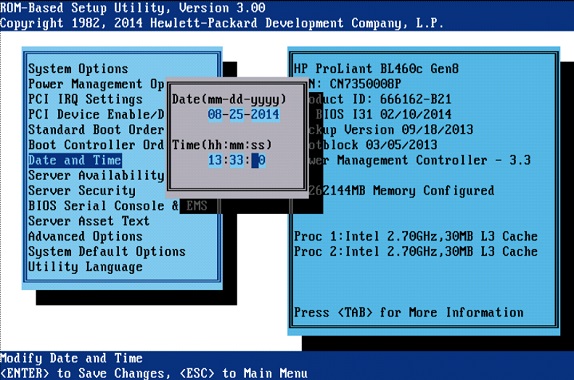
“Advanced Options | Advanced System ROM Options” menu > select “Disabled” for the “Power-on Logo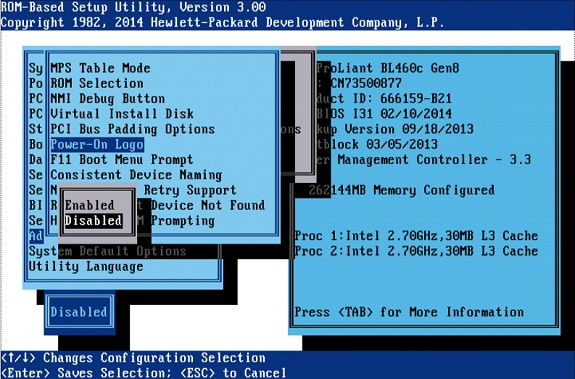
“Advanced Options | Advanced Performance Tuning Options” menu > select “Enabled” for the “ACPI SLIT Preferences”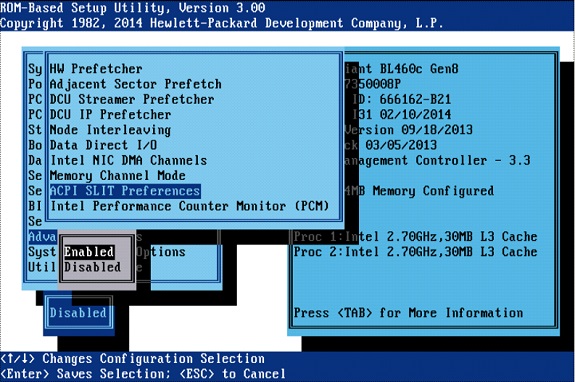
Also set “Intel Performance Counter Monitor (PCM)”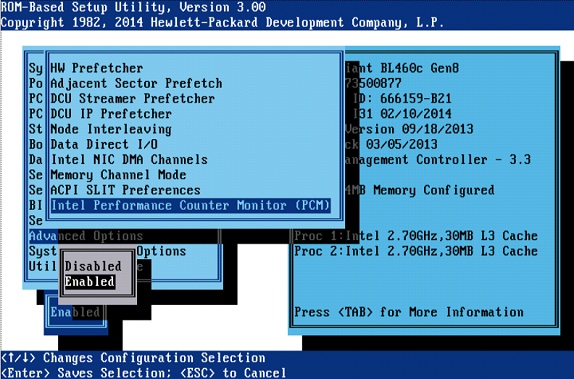
Proliant Gen9 / Gen10 Servers
⦁ For Synergy Blade Servers the BIOS settings are pre-configured in the Server Profile Template.
⦁ For HPE Synergy Blade servers, use the Composer to create a Server Profile using the ESXi template to apply it to the appropriate server hardware.
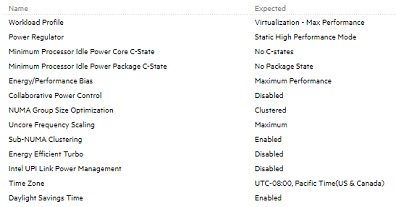
⦁ This screenshot provides the expected BIOS settings.