How to Access Email via Outlook Web Access (OWA)
- Navigate to: https://login.microsoftonline.com/common/oauth2/authorize?client_id=00000002-0000-0ff1-ce00-000000000000&redirect_uri=https%3a%2f%2foutlook.office365.com%2fowa%2f&resource=00000002-0000-0ff1-ce00-000000000000&response_mode=form_post&response_type=code+id_token&scope=openid&msafed=1&msaredir=1&client-request-id=d6f712e4-8e0b-c690-dcc7-3082fcfa3760&protectedtoken=true&claims=%7b%22id_token%22%3a%7b%22xms_cc%22%3a%7b%22values%22%3a%5b%22CP1%22%5d%7d%7d%7d&nonce=638636475879321385.58dd735b-4862-46c7-8d7a-ae13e3f0226d&state=Dcs7FoAwCABBos_jYBIIH48TRVtLry_FbLcFANa0pNIyYMqurMPE7WDq7LKLRxjLicOVcOhl6GET59355qcRaZR8t_p-s_4
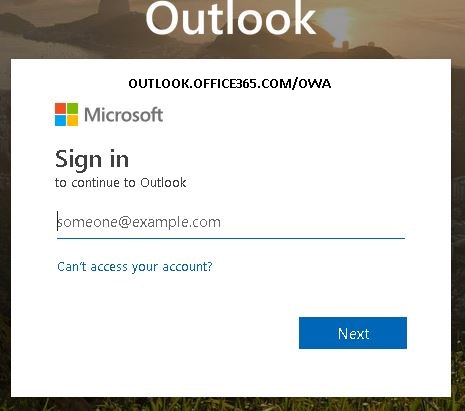
- Input the provided username and click ‘Next’
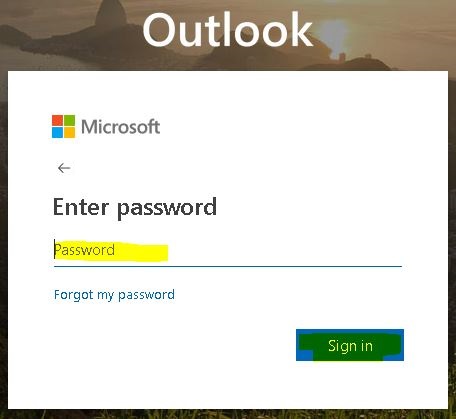
- Enter the Windows logon password
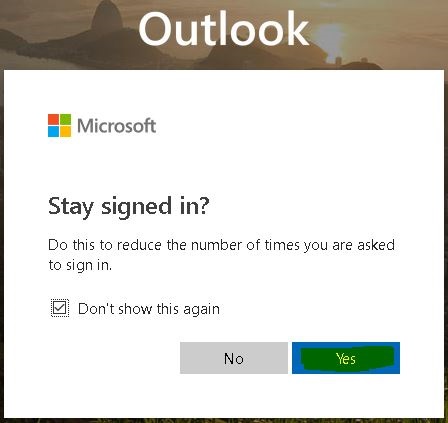
- Put a check mark next to “Don’t show this again” and click “Yes”
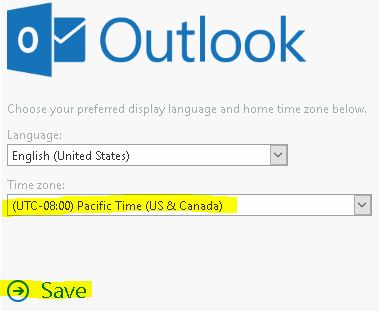
- If this if the first time of logging in, this screen will appear. Set the appropriate time zone for the user locality and click ‘Save’
- Enjoy Office 365 Mail Access online
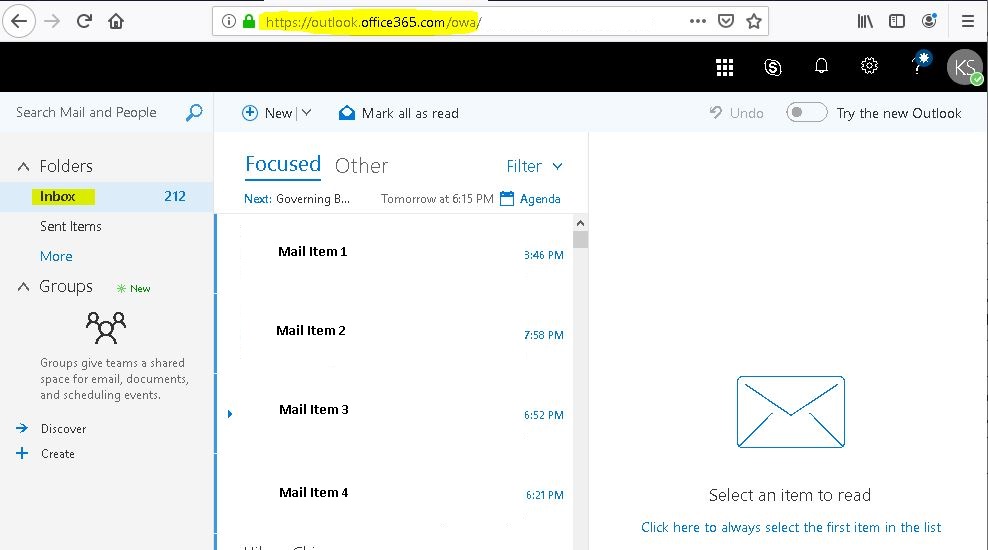
How to Access Email Using Outlook
- Logon to Windows using normal Active Directory credential
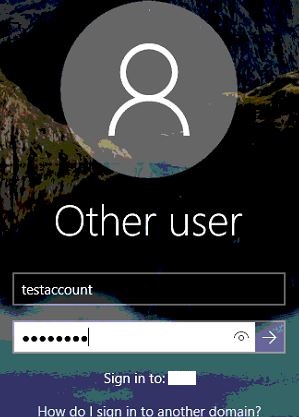
- Start Outlook 2016. Since the email account is now hosted on Office365.com, that credential is required for these types of prompts
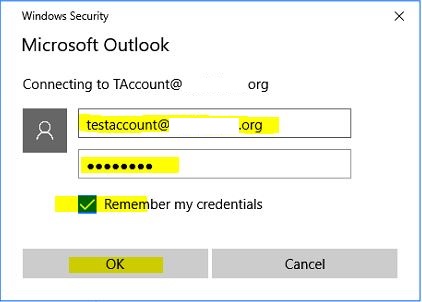
- If there is another pop-up for the credential, input the same username and password as provided by your System Administrator
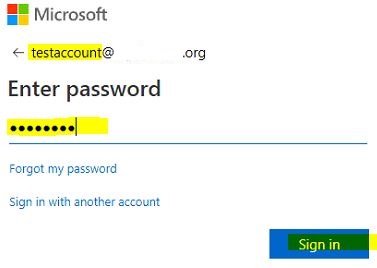
- Proceed to use Outlook as normal
How to Access Email Using iPhones
- Click on the Settings icon
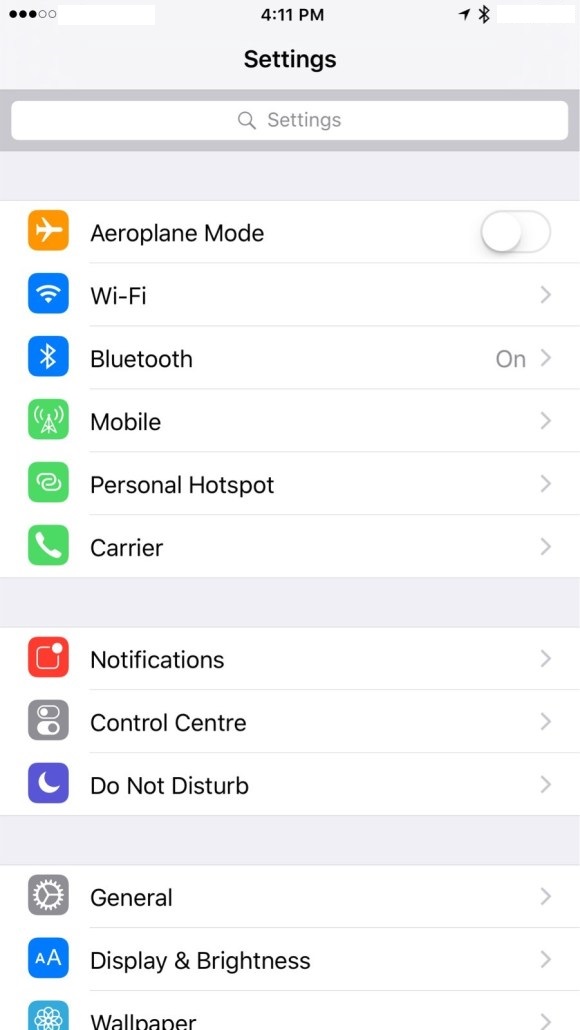
- Tap “Mails, Contacts, Calendar”
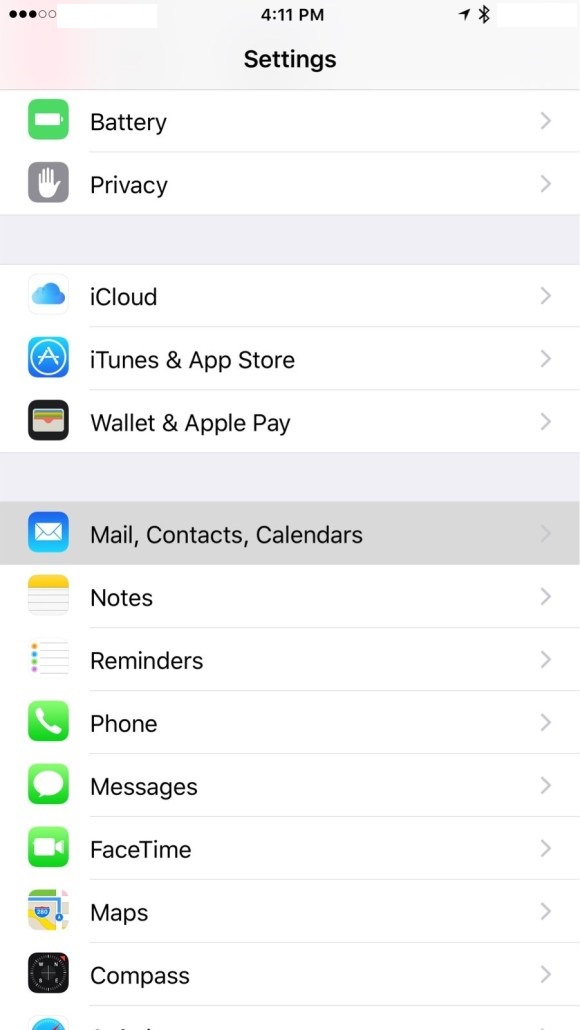
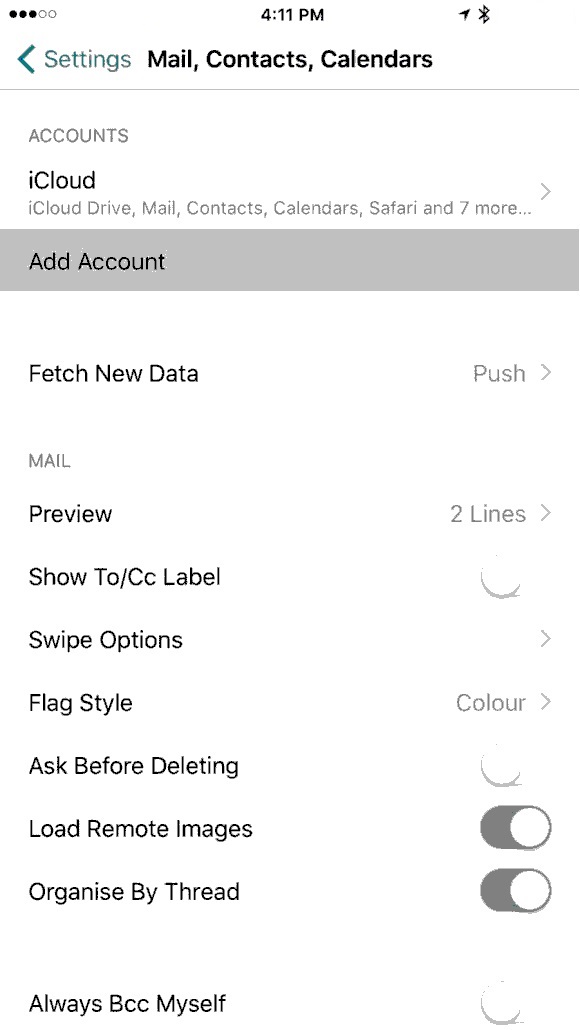
- Add Account
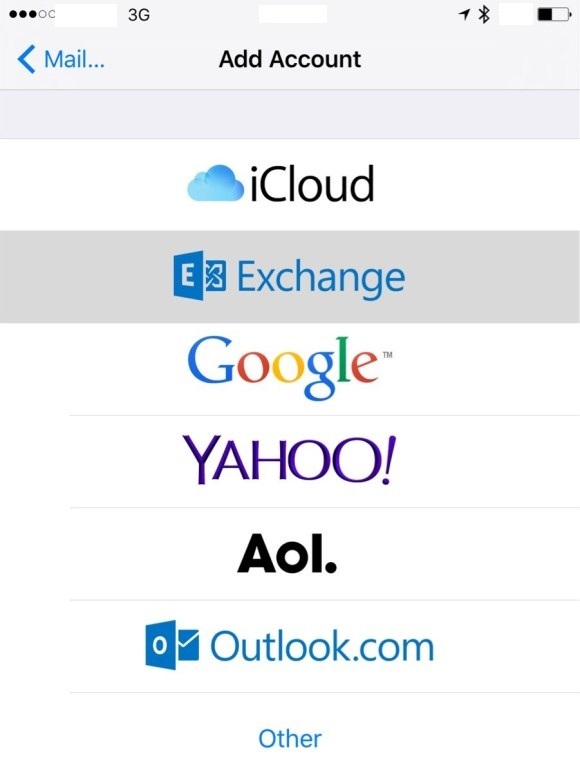
- Click on Exchange
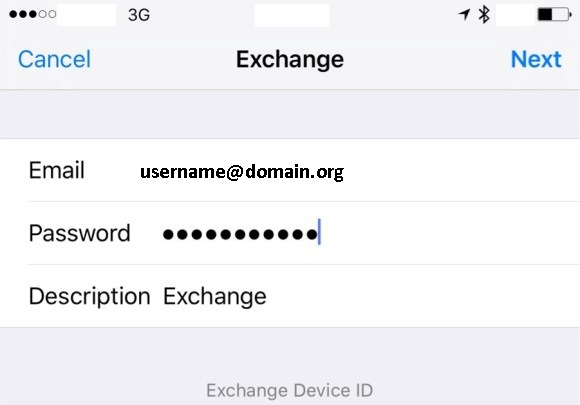
- Input given credentials and click Next
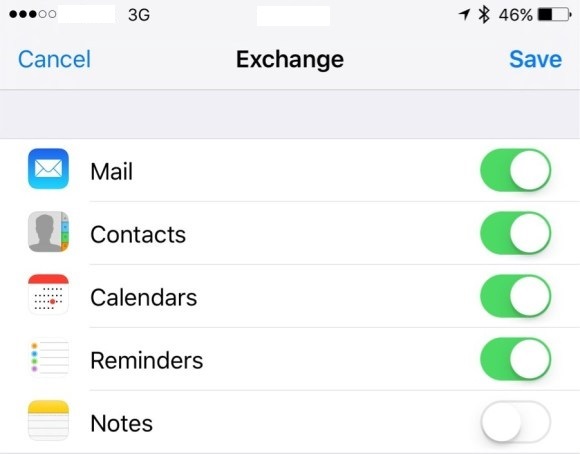
- Change the slider to green for any features to be synchronized
- Enjoy sending and receiving emails
How to Access Email Using Android
- Open Google Play Store. Search for Outlook for Android and install it.
- Run the newly installed Outlook for Android
-
Go to Settings
 > Add Account > Add Email Account.
 -
Enter email address. Tap Continue.
-
Tap Setup account manually if available, and then on the email provider page choose Exchange and toggle Advanced Settings on.
-
Enter your server setting details, if available and then tap the checkmark icon.
-
Server Settings:
Incoming Server Settings-
Domain\Username: [email protected]
-
Password: Use the password that you use to access your email.
-
Server
-
Exchange accounts: [email protected]
-
Office 365 work or school accounts: outlook.office365.com
-
-
Port
Try 443 – use 993 if necessary -
Security type
Select SSL/TLS or make sure the Use secure connection (SSL) checkbox is checked, then tap Next.
8. Outgoing SMTP Server Settings
-
SMTP Server
-
Exchange accounts: [email protected]
-
Office 365 work or school accounts – Use smtp.office365.com.
-
-
Security Type
Choose TLS. -
Port Number
Enter 587. Tap Next.
-
-
You may be prompted to enter your email account password again or agree to/activate any necessary permissions.
- Done