Method 1: use TestDisk (very effective in recovering JPEG and partial files)
Download https://www.cgsecurity.org/wiki/TestDisk_Download > extract files > run testdisk_win.exe > bypass any Windows security screen > at the initial choices, pick No Log > select an appropriate drive to check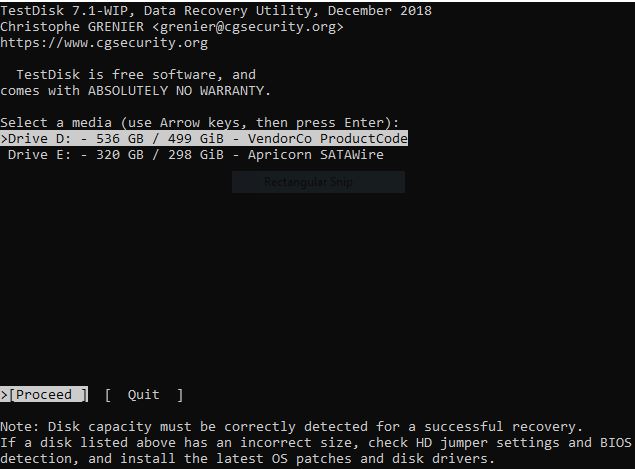
Select an appropriate partition option matching the drive. Pick [None] as default > Type = List > navigate to the target directory > press “a” to select all files in the intended directory > “c” to copy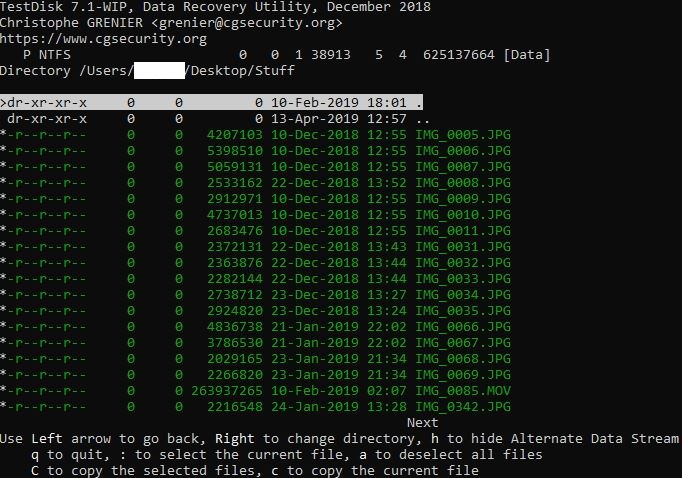
Once the desired files have been selected, press “q” to quit > the program shall proceed to destination choices. Use left and right buttons to navigate and pick final Destination for files to be copied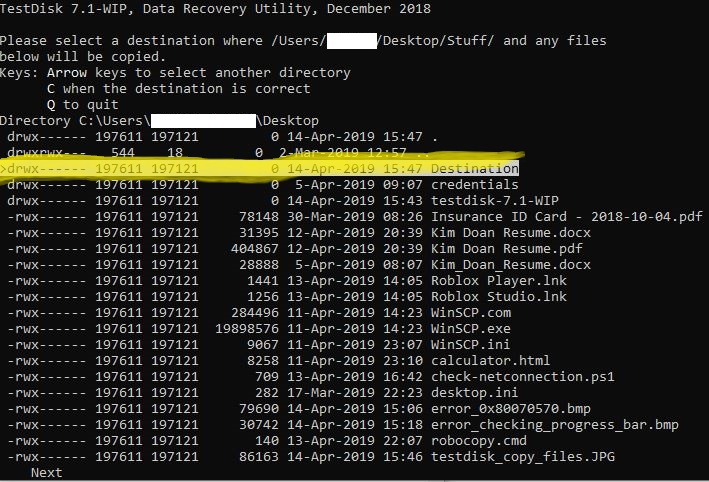
When files are copied, press “q” to quit and manually exit this program by pressing the ‘x’ button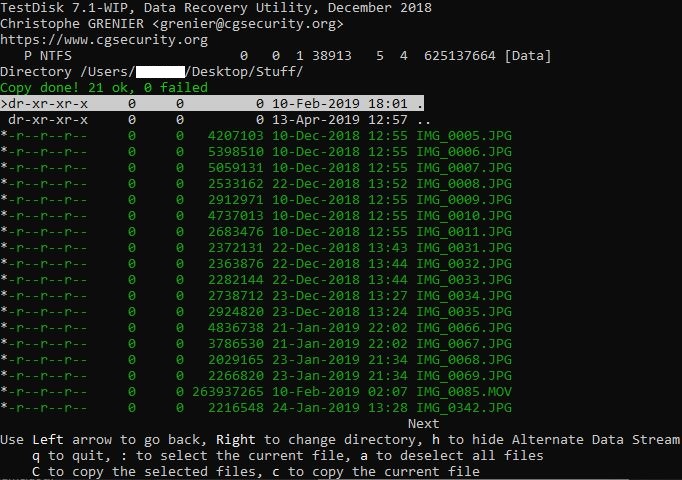
Method 2: use the Windows CheckDisk GUI utility
Use Explorer to display a selection of Disks > right-click on the target disk > Properties > click on Tools > Check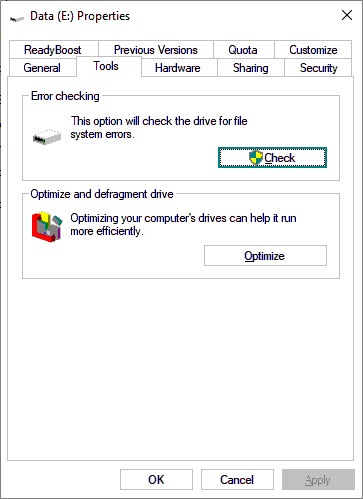
a Windows prompt may appear to ask on whether you would like to scan and repair this disk > OK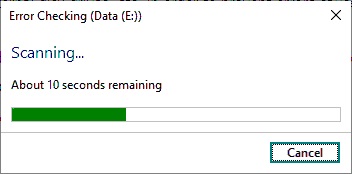
Method 3: use chkdsk
# select drive E:
E:
# run this command
chkdsk /r /f /x
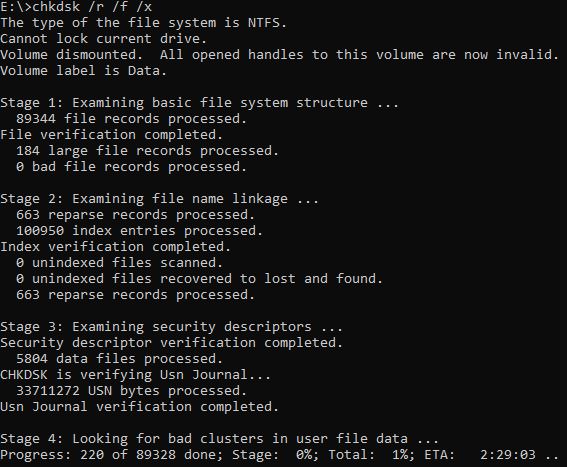
Transcript:
Microsoft Windows [Version 10.0.17763.437]
(c) 2018 Microsoft Corporation. All rights reserved.

C:\Windows\system32>e:

E:\>chkdsk /r /f /x
The type of the file system is NTFS.
Cannot lock current drive.
Volume dismounted.  All opened handles to this volume are now invalid.
Volume label is Data.

Stage 1: Examining basic file system structure ...
  89344 file records processed.
File verification completed.
  184 large file records processed.
  0 bad file records processed.

Stage 2: Examining file name linkage ...
  663 reparse records processed.
  100950 index entries processed.
Index verification completed.
  0 unindexed files scanned.
  0 unindexed files recovered to lost and found.
  663 reparse records processed.

Stage 3: Examining security descriptors ...
Security descriptor verification completed.
  5804 data files processed.
CHKDSK is verifying Usn Journal...
  33711272 USN bytes processed.
Usn Journal verification completed.

Stage 4: Looking for bad clusters in user file data ...
                                                                                                                                                  89328 files processed.
File data verification completed.

Stage 5: Looking for bad, free clusters ...
                                                                                                                                                  46590129 free clusters processed.
Free space verification is complete.

Windows has scanned the file system and found no problems.
No further action is required.

 312568831 KB total disk space.
 125979684 KB in 62093 files.
     30424 KB in 5805 indexes.
         0 KB in bad sectors.
    198203 KB in use by the system.
     65536 KB occupied by the log file.
 186360520 KB available on disk.

      4096 bytes in each allocation unit.
  78142207 total allocation units on disk.
  46590130 allocation units available on disk.
