1. Run PowerShell as Administrator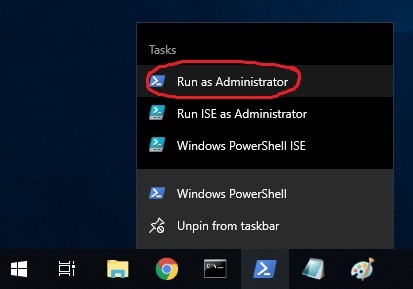
2. Issue these commands to download the Windows10Debloater script:
# Set protocol to TLS1.2 to avoid this error: Exception calling "DownloadFile" with "2" argument(s): "The request was aborted: Could not create SSL/TLS secure channel."
[Net.ServicePointManager]::SecurityProtocol = [Net.SecurityProtocolType]::Tls12

$bloatwareRemovalDownload="https://github.com/Sycnex/Windows10Debloater/archive/master.zip"
$bloatwareRemovalDestination="C:\Temp\Windows10Debloater-master.zip"
(New-Object System.Net.WebClient).DownloadFile($bloatwareRemovalDownload, $bloatwareRemovalDestination)
$destination="C:\Temp"
expand-archive -path $bloatwareRemovalDestination -DestinationPath $destination
3. Remove bloatware on Windows 10 by using the downloaded script and allowing it to bypass local execution policy
PowerShell.exe -executionpolicy bypass -File C:\Temp\Windows10Debloater-master\Windows10Debloater.ps1 -Confirm:$False
Click ‘No’ on this prompt to remove only items that are defined as unwanted by most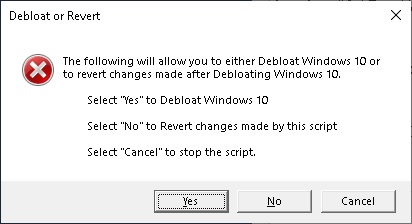
Watch Progress…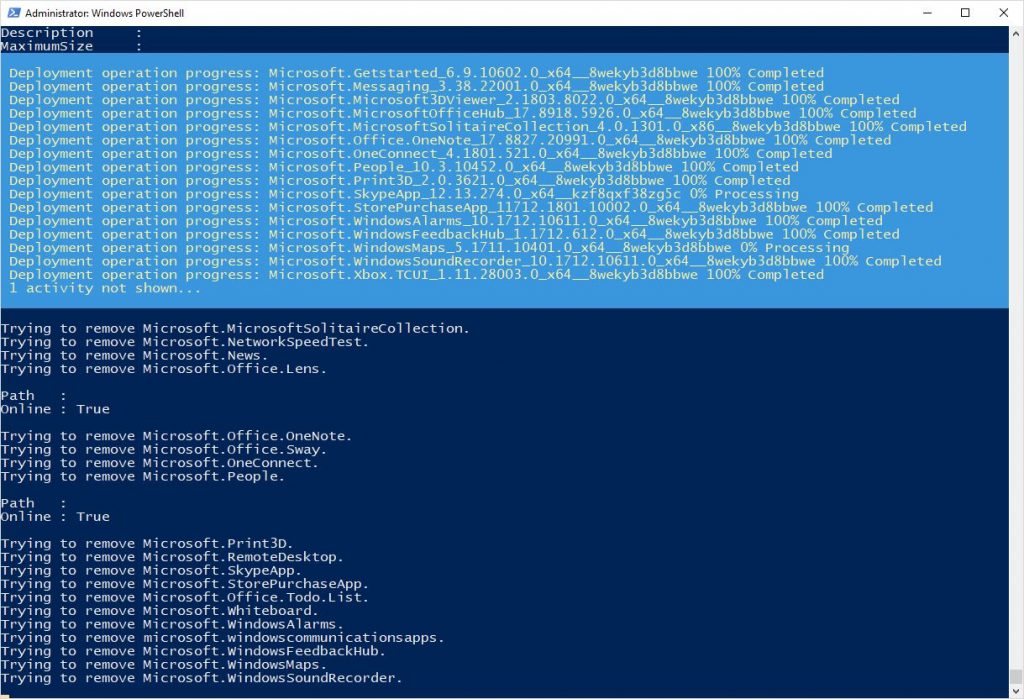
Input ‘Y’ or ‘A’ to remove registry-embedded items such as Cloudstore
Get rid of MS Edge PDF association, click ‘Yes’
Remove OneDrive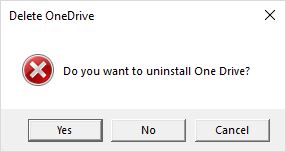
Say ‘Yes’ to this prompt to clean up the Start Menu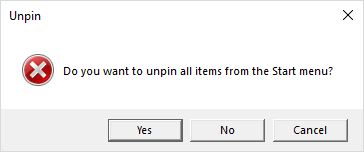
When the script completes, click ‘No’ on the reboot prompt to continue using the computer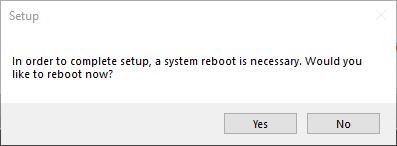
4. Remove other unwanted features:
# Disable Windows Media (a vector of attack surface from malware)
Disable-WindowsOptionalFeature –FeatureName "WindowsMediaPlayer" -Online

# Disable XPS
Disable-WindowsOptionalFeature -Online -FeatureName "Printing-XPSServices-Features"

# Workfolder Client
Disable-WindowsOptionalFeature -Online -FeatureName "WorkFolders-Client"

# SMB1
Disable-WindowsOptionalFeature -Online -FeatureName "SMB1Protocol","SMB1Protocol-Client","SMB1Protocol-Server"
5. Re-enable some features if they’ve been removed by mistakes
# Check for enabled features
Get-WindowsOptionalFeature -Online | Where State -eq 'Enabled'
# Re-enable Calc
Get-AppxPackage -allusers *windowscalculator* | Foreach {Add-AppxPackage -DisableDevelopmentMode -Register “$($_.InstallLocation)\AppXManifest.xml”}
Categories: